Getting started
Yamaha's DX7, released in 1983, made its sounds with FM synthesis: simple waves that change the pitch of other waves, very fast, to make complex tones. Its electric pianos, basses and bells are all over 1980s records. Rithmatic runs the same six-operator FM engine on your phone, tablet or computer, and comes with tens of thousands of DX7 patches.
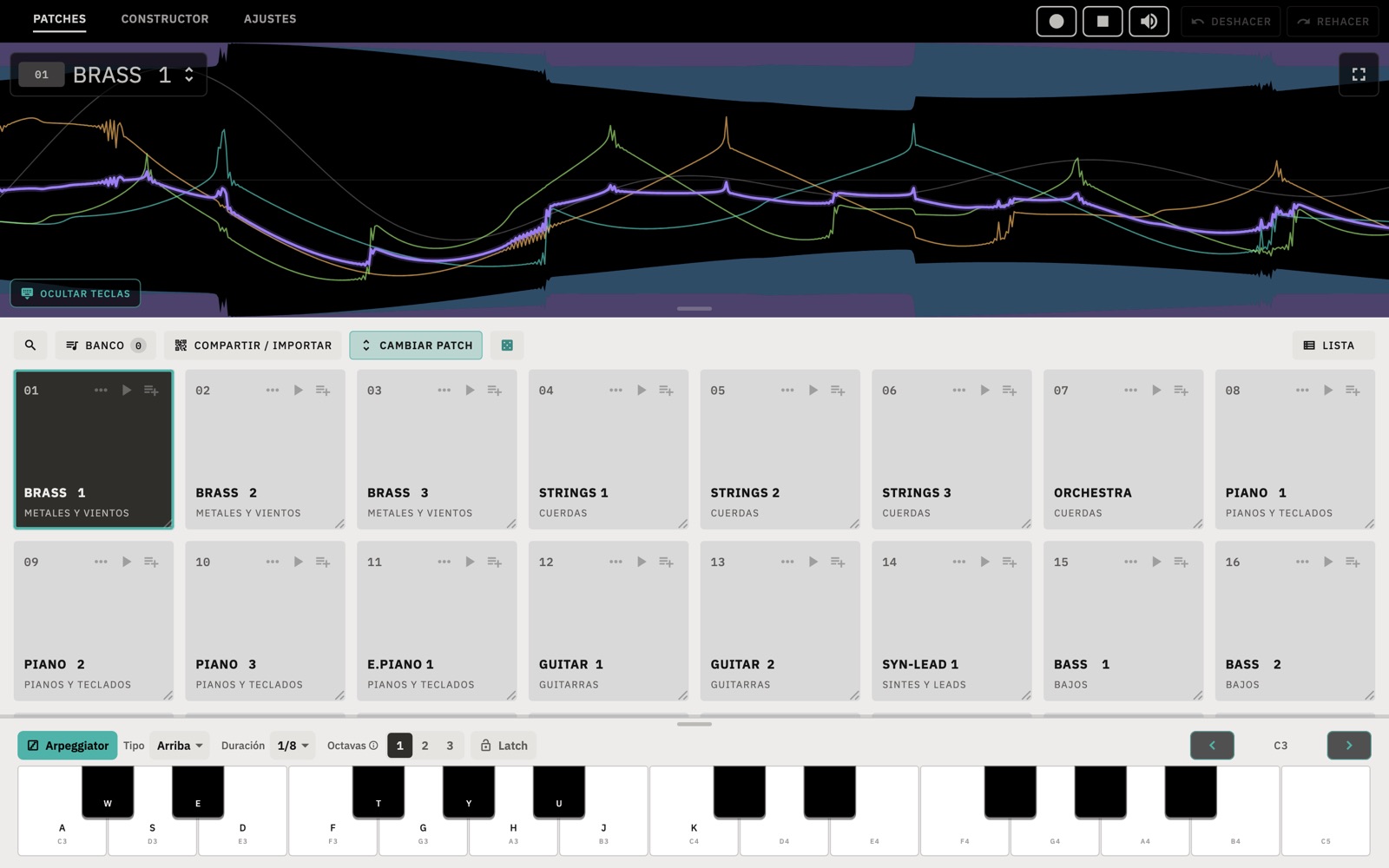
- Open Rithmatic. It starts on the PATCHES screen, which shows a grid of pads.
- Tap a pad to choose that patch.
- Tap KEYBOARD and play the on-screen keys. On a computer you can also play with the A S D F row.
You don't need to plug anything in, sign up, or be online. A MIDI keyboard and a hardware synth are optional.
The main screen
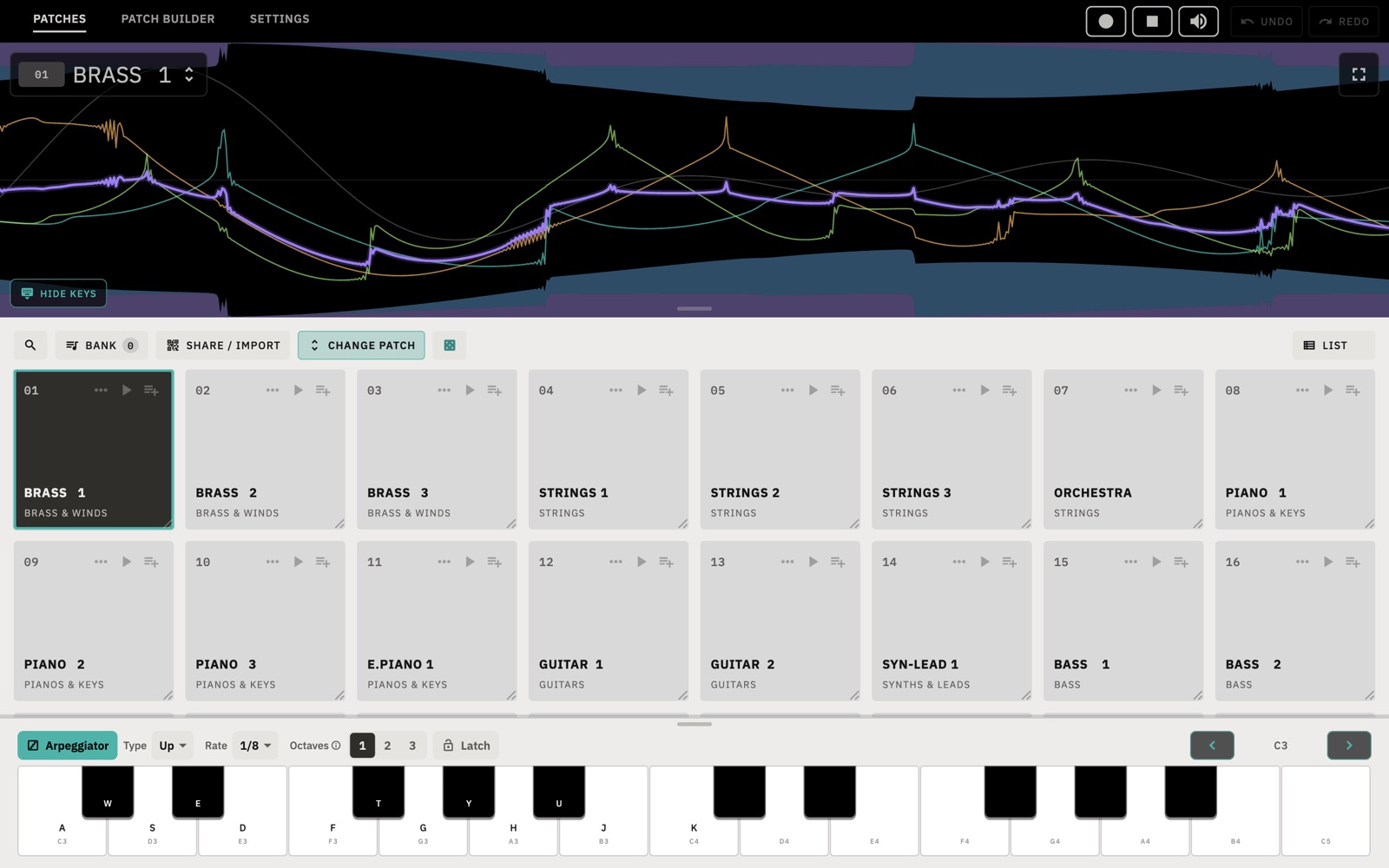
The header
- PATCHES, PATCH BUILDER and SETTINGS switch between the three main screens. If you choose a Volca FM2 in Settings, PATTERNS and SNAPSHOTS are added.
- ● records what the app plays. ■ stops all sound, including held notes and the arpeggiator.
- The speaker button sets the volume and can mute everything.
- UNDO and REDO show what they will undo or redo when you hover over them or press and hold.
The screen
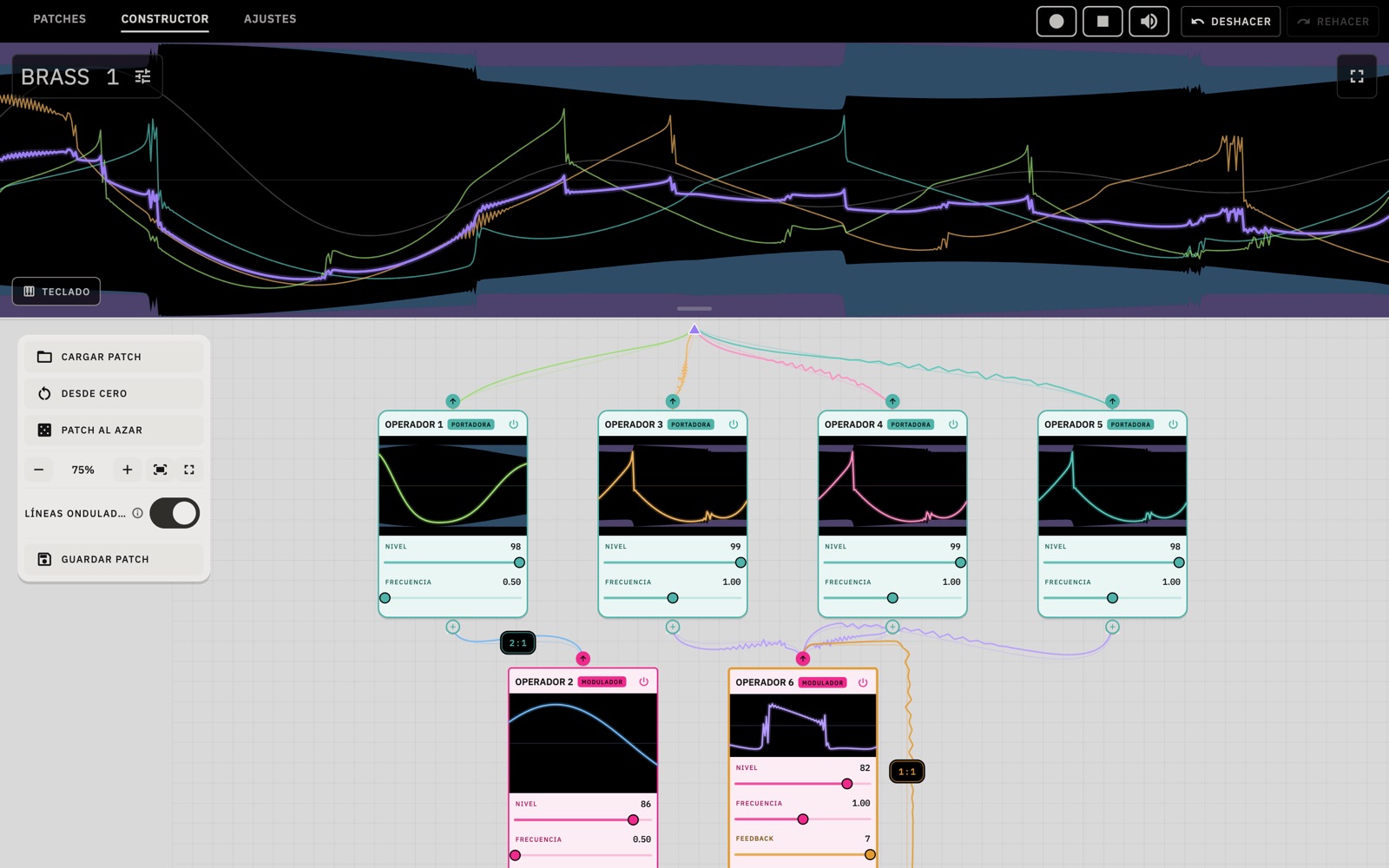
The black panel draws the sound while you play. Each thin coloured line is one of the patch's six operators, and the thick purple line is the combined sound you hear. Drag the handle at the bottom of the panel to resize it, or use the button in its corner to go full screen. The patch name is shown at the top left; tap it to choose a different patch.
The toolbar and pads
Below the screen are search, BANK, SHARE / IMPORT, CHANGE PATCH and a dice button that picks a random patch. The pads are described in Pads and your bank.
Playing
Ways to play
- On-screen keys: tap KEYBOARD to show them and HIDE KEYS to hide them. The arrows on the right change the octave. Drag the handle above the keys to change their height, and double-tap it to reset.
- Computer keyboard: A to K play the white keys and W E T Y U the black keys, starting from the lowest C on the on-screen keys.
- MIDI keyboard: connect one over USB or Bluetooth. All MIDI inputs play the app by default.
- In a DAW: see Using the plugin.
Arpeggiator
Turn on Arpeggiator above the keys and hold a chord. Rithmatic plays the notes one after another in a repeating pattern.
- Type sets the order: Up, Down, Up & down, Random, or As played.
- Rate sets the length of each note. 1/16 plays four notes per beat, and T means triplets.
- Octaves sets how many octaves (1 to 3) the pattern covers before it repeats.
- Latch keeps the pattern playing after you let go. Press new keys to change it, or turn the arpeggiator off to stop.
Touch and pitch
These options are in Settings › Sound:
- Key velocity: when on, notes play as hard as you hit the keys. When off, every note plays at a strength you choose.
- Aftertouch: pressing harder on a held key adds vibrato, tremolo or swell, if your keyboard supports it.
- Voices: POLY plays up to sixteen notes at once. MONO plays one note at a time, as a DX7 does in mono mode.
- Glide makes each note slide from the previous one (0 is off, 99 is the slowest). Glissando makes the slide step through each semitone.
- Tuning: Equal is standard tuning. Just tunes the thirds, fifths and sixths from C to pure intervals. Alpha, Beta and Gamma are scales by Wendy Carlos that don't repeat at the octave.
Finding sounds
Tap CHANGE PATCH or the patch name to open the catalog. The patch you pick replaces the one on the selected pad.
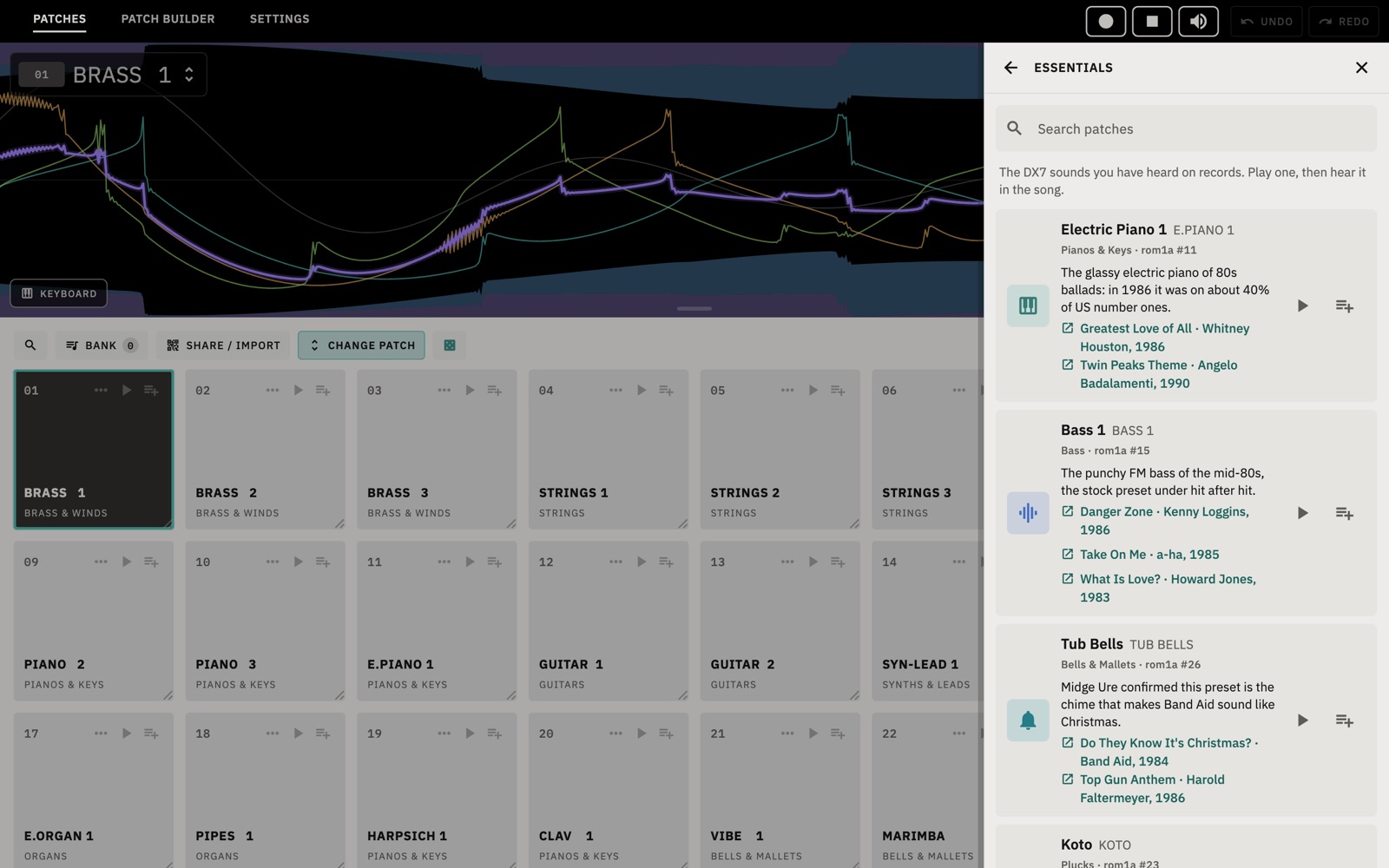
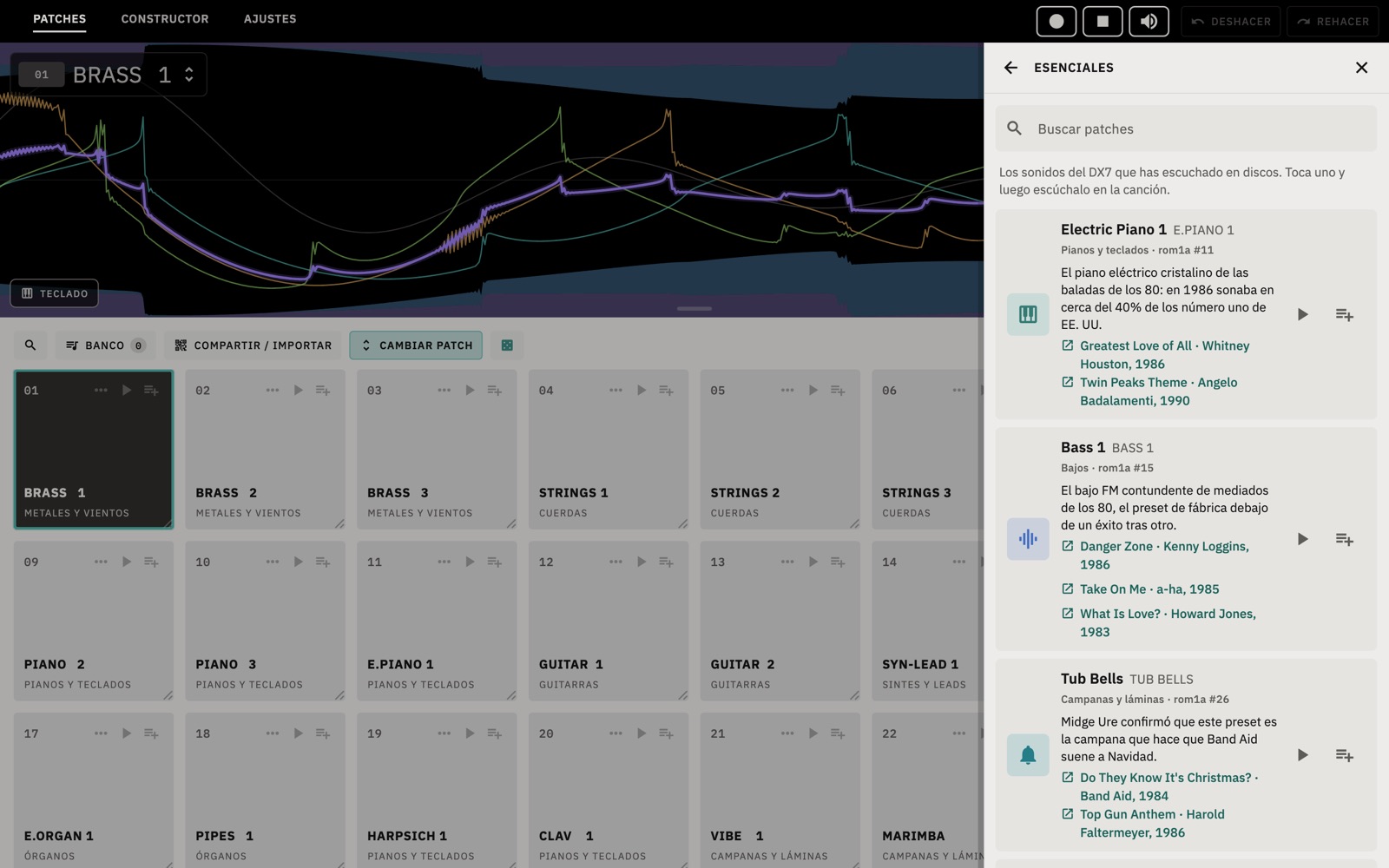
- Essentials opens first. It lists the best-known factory sounds, each with links to songs that use it.
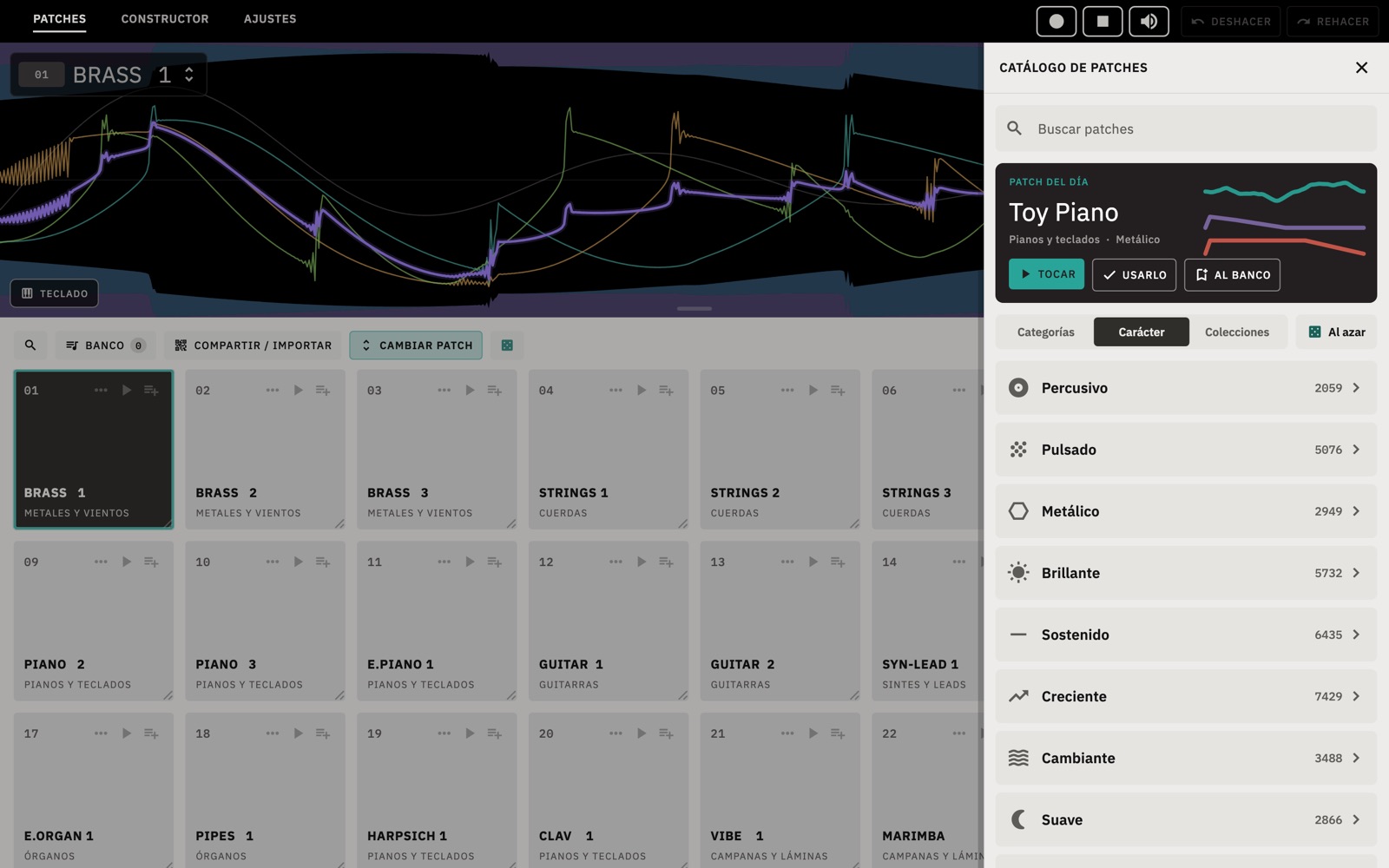
- Patch of the day changes daily. PLAY plays it, USE IT puts it on the selected pad and BANK IT adds it to your bank.
- Categories groups patches by instrument family, such as Pianos & Keys, Bass, Strings, or Bells & Mallets.
- Character groups patches by how they sound over time: Percussive, Plucked, Metallic, Bright, Sustained, Swell, Evolving or Mellow.
- Collections groups patches by source: the original factory ROMs, third-party cartridges and community archives. Your own collections are here too: Favorites, Built Here, Blended Here and Shared With Me.
- Search matches patch names and categories. Random, or the dice button, picks any patch.
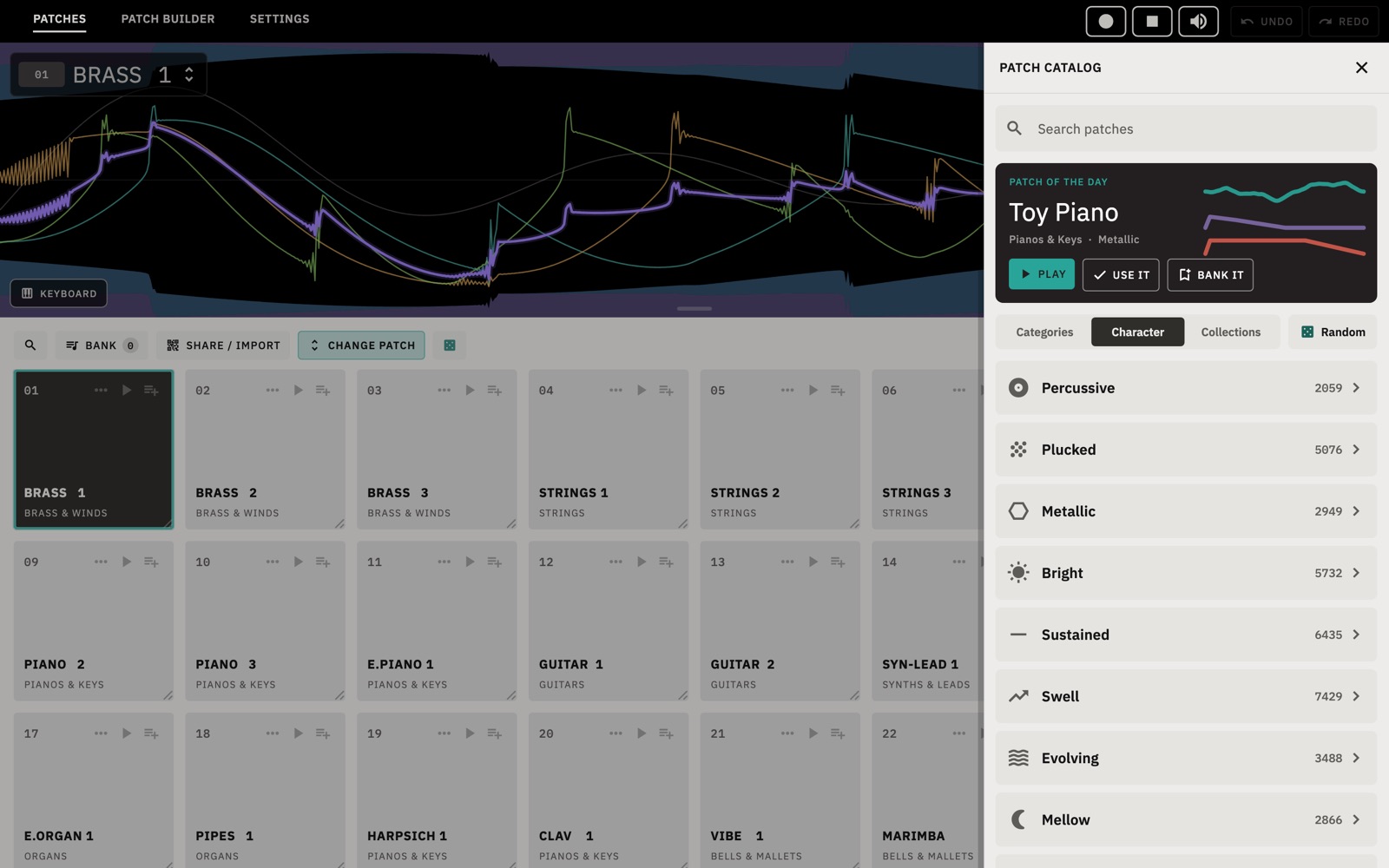
In each list, ▶ plays a patch without selecting it, and + adds it to your bank.
Pads and your bank
Pads
The Patches screen has 64 pads, which start out filled with the original DX7 factory ROM. Tap a pad to play it. Each pad has three buttons:
- ▶ plays the patch without selecting it.
- ≡+ adds it to your bank.
- ⋯ opens a menu with Change patch, Patch info, Blend with…, Take to patch builder and Share this patch.
Drag one pad onto another to swap them. Drag the corner of a pad to make all the pads larger or smaller. LIST and GRID switch between a list and the grid, and the magnifying glass searches the pads.
Patch info
⋯ › Patch info shows the patch's category and character, its other names, the banks it appears in and who made it. SOUNDS LIKE THIS lists the patches in the library that sound most similar. You can also add tags here, and delete patches you made or imported. Deleting can be undone.
Your bank
The BANK button switches the grid to your bank, which is your own list of patches to keep. It can be any length, and you can drag patches to reorder it. EXPORT .SYX saves the bank as standard DX7 files that Dexed, other DX7 editors and real DX7s can open. If a hardware synth is connected, the first 32 patches can be sent to it as one bank.
Blending patches
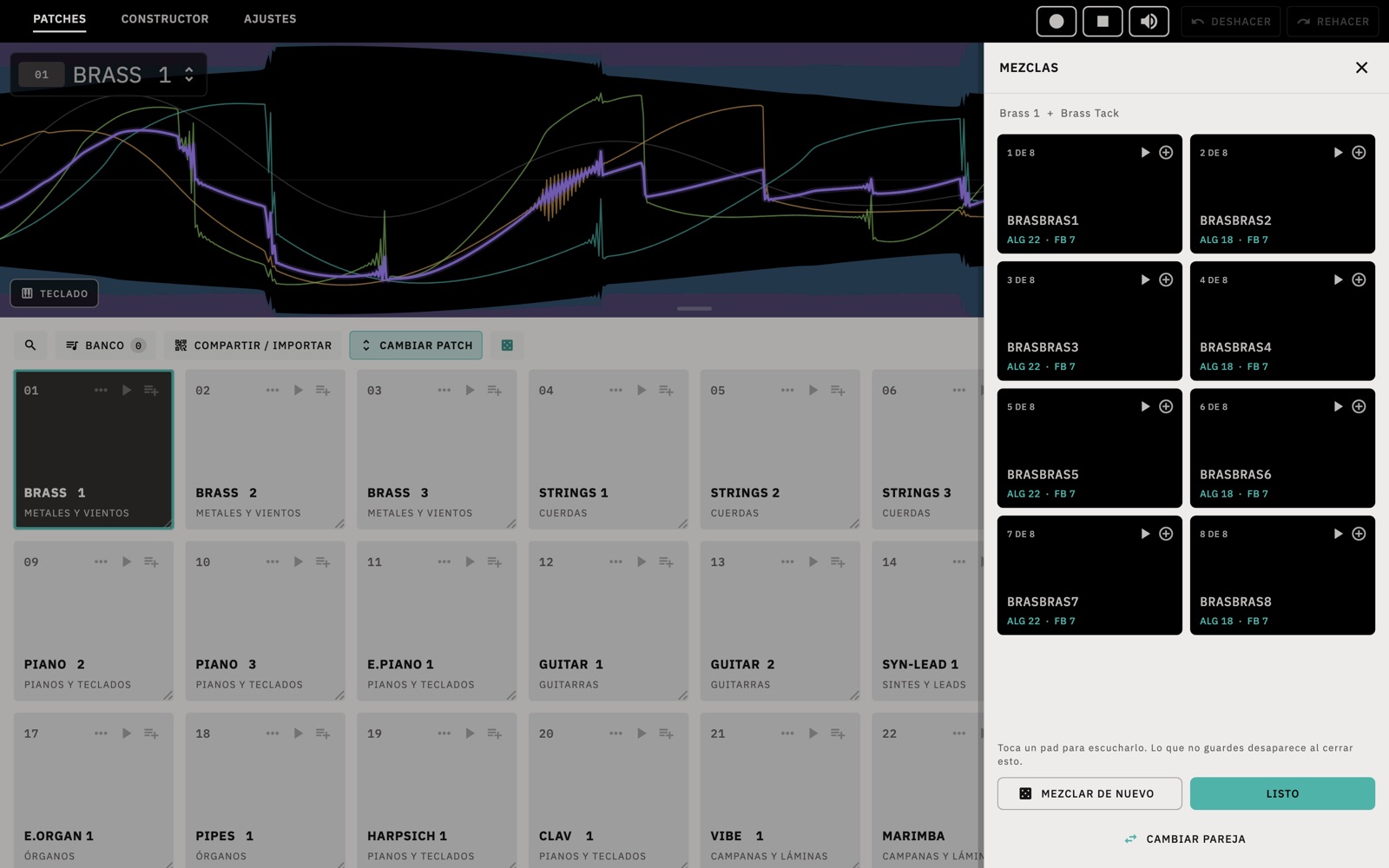
Blend combines two patches into eight new ones. Each new patch takes every operator unchanged from one patch or the other, and takes its algorithm from one of them, so the results sound like combinations of the two rather than an average.
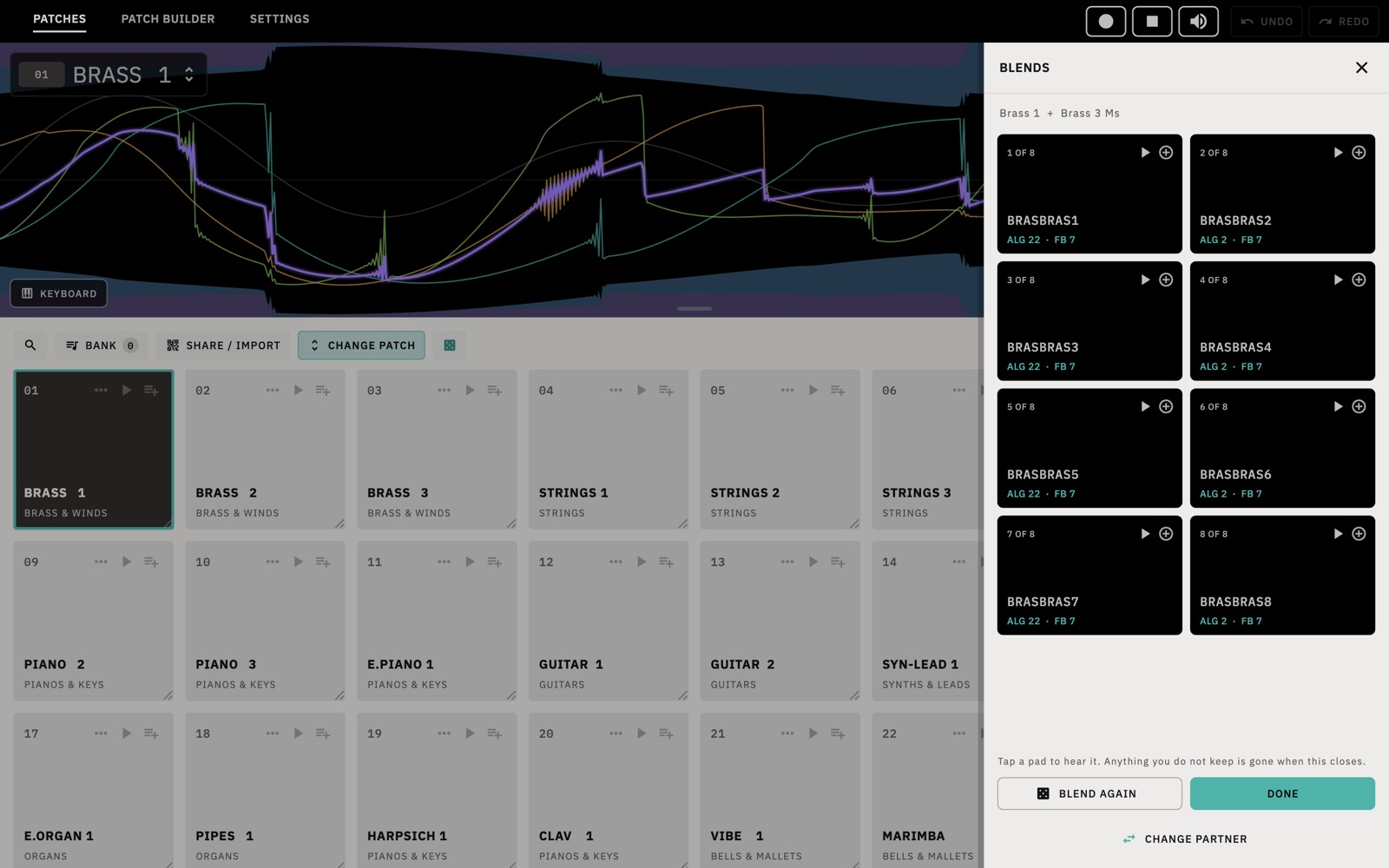
- On a pad, choose ⋯ › Blend with…
- Choose a second patch from the library, use the patch of the day, or choose Surprise me.
- Tap BLEND. Play each result and tap ⊕ on the ones you want to keep.
- BLEND AGAIN makes eight more from the same two patches. CHANGE PARTNER lets you choose a different second patch.
Blends you don't keep are discarded when you close the panel. The ones you keep are saved in Collections › Blended Here.
How FM works
A few terms explain most of what you see in the Patch Builder.
- Operators: every patch has six. Each one produces a simple wave and has its own envelope, which shapes its level over time.
- Carriers and modulators: a carrier is an operator you hear. A modulator isn't heard directly. Instead it changes the pitch of the operator it feeds so quickly that the result is a new tone. This is what gives FM its bright, metallic and bell-like sounds.
- Level: on a carrier, level is volume. On a modulator, it is the amount of modulation. More modulation makes the sound brighter and buzzier.
- Ratio: the operator's pitch as a multiple of the note you play. Whole numbers such as 1, 2 and 3 sound harmonic. Other values, such as 1.41 or 3.5, sound inharmonic, like bells.
- Algorithm: the way the six operators are connected, which decides which ones are carriers. The DX7 has 32 algorithms, and so does Rithmatic.
- Feedback: one operator in each algorithm can modulate itself. Small amounts add grit, and large amounts turn it into noise.
The Patch Builder
Open the PATCH BUILDER tab, or choose ⋯ › Take to patch builder on a pad. The patch is shown as a diagram of its operators, and each one shows its own wave as you play.
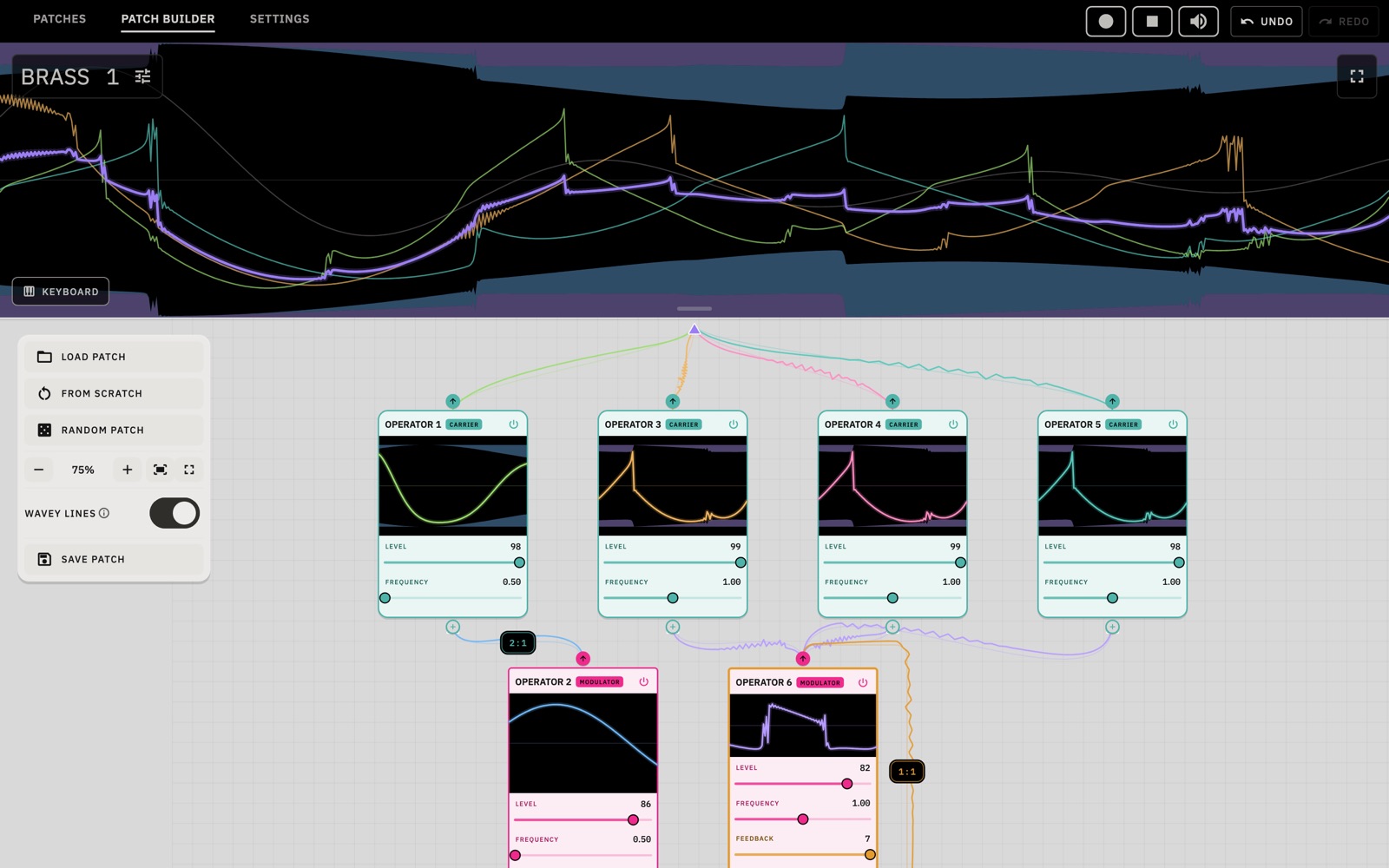
The canvas
- The triangle at the top is the output. Carriers are in the row below it and are labelled CARRIER. Modulators are below the operators they feed and are labelled MODULATOR.
- Each operator card shows the operator's wave, its LEVEL and its FREQUENCY (ratio). Move the sliders while holding a note to hear the change. The frequency slider stops on whole numbers; drag away from the slider for finer steps.
- The power button on a card turns that operator off, so you can hear what it contributes.
- The operator with feedback also has a FEEDBACK slider.
- To change the connections, drag from an operator's output (the arrow at the top of the card) to another operator's input (the + below it). Rithmatic chooses the closest of the 32 algorithms. You can also choose one directly from the ALGORITHM menu on the canvas.
The tool column
- LOAD PATCH starts from any patch in the catalog, or from a starting point you saved.
- FROM SCRATCH loads the DX7's initial voice: a single sine wave on operator 1.
- RANDOM PATCH loads a random patch.
- The zoom controls (−, +, fit and full screen) change the view of the canvas.
- WAVEY LINES draws each connection as the wave travelling along it. Turn it off to draw plain lines.
- SAVE PATCH saves the patch under a name you choose. It is added to your bank and to Collections › Built Here, and nothing is overwritten. With a Volca FM2 connected, you can also save it to one of the FM2's memory slots.
Editing a voice
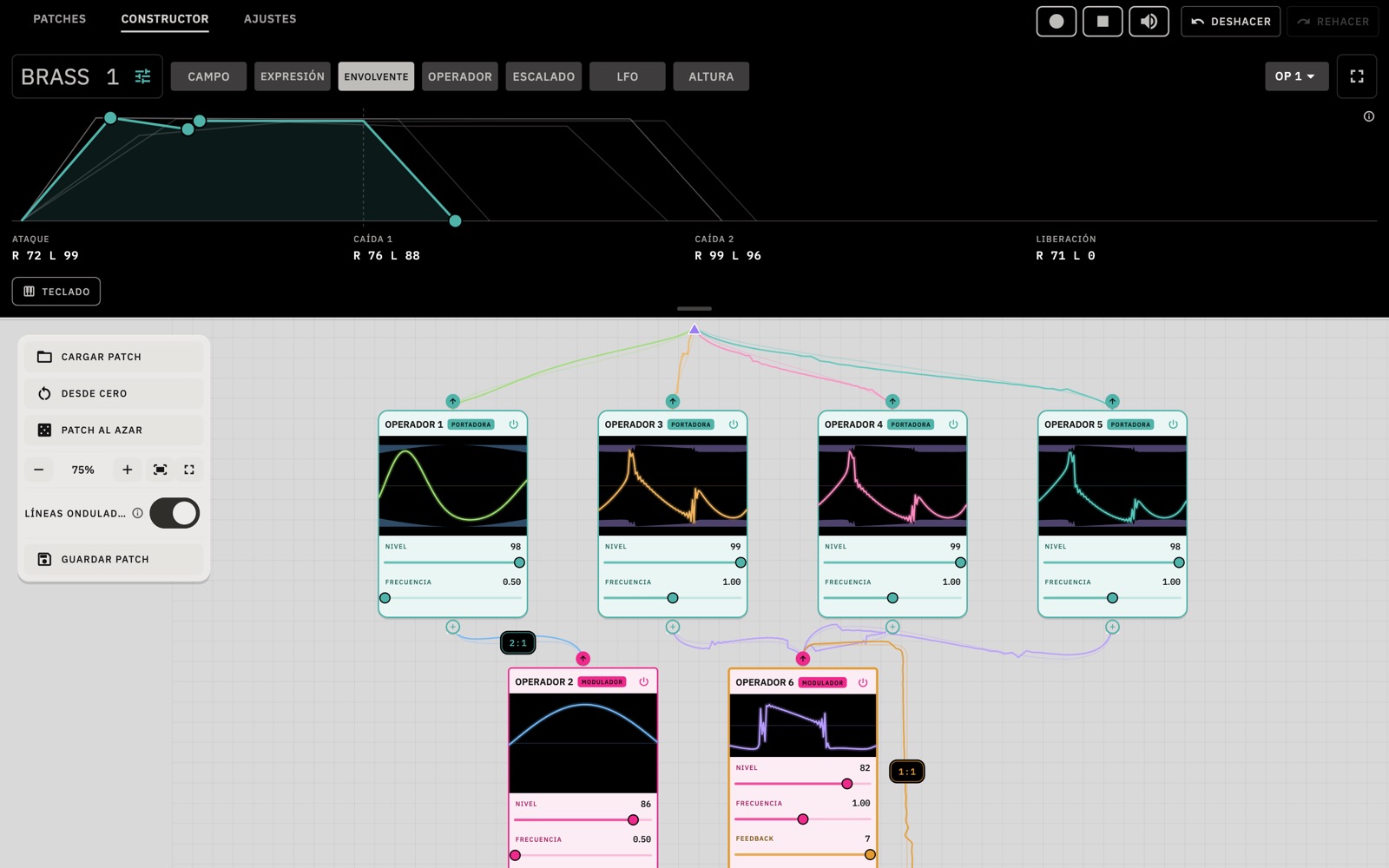
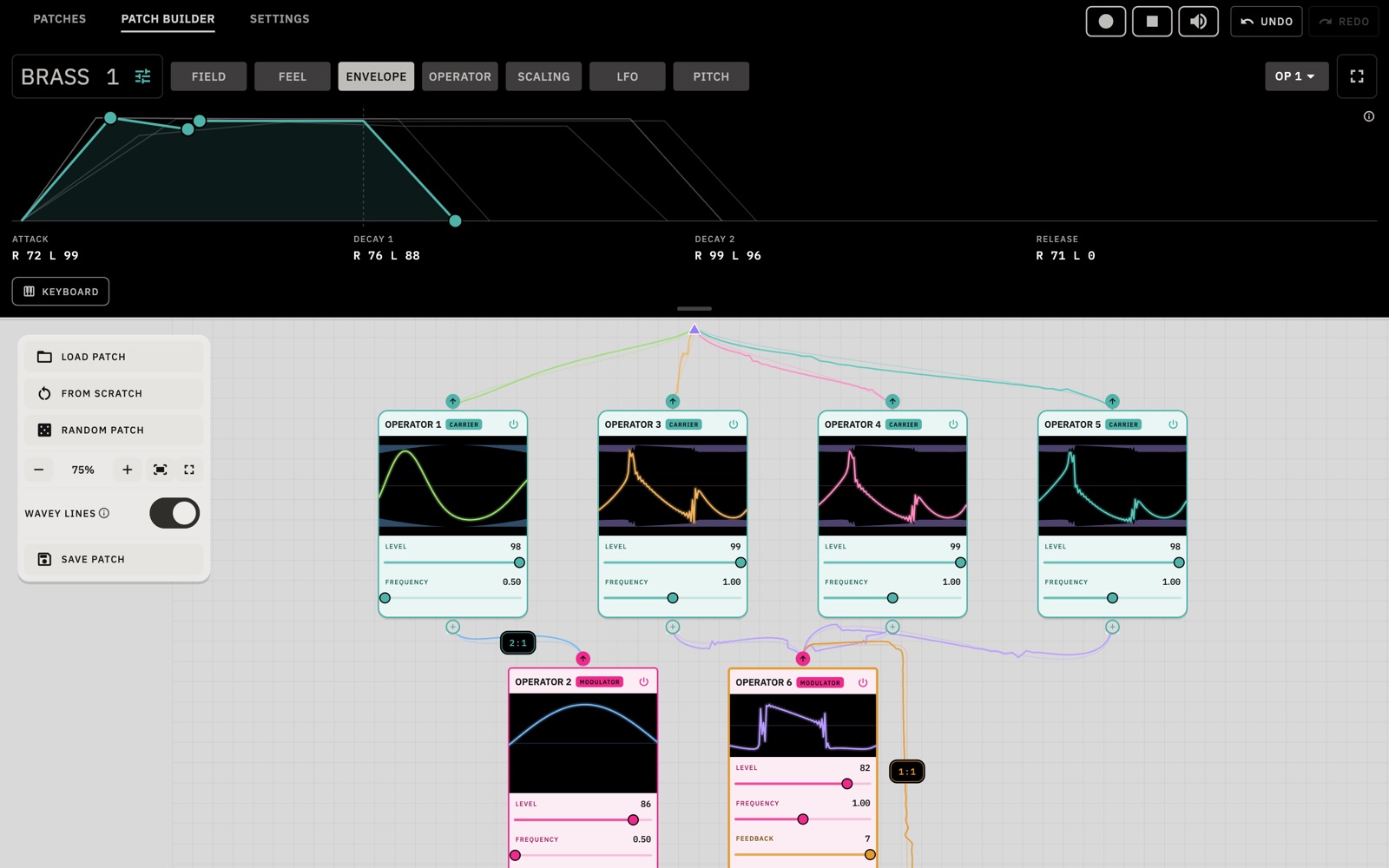
Tap the sliders icon next to the patch name to open the editor tabs on the screen. The keys keep working while you edit. Tabs that edit a single operator have an OP menu on the right, and selecting a card on the canvas also chooses the operator. Tap ⓘ next to any control for an explanation.
| Tab | What it controls |
|---|---|
| FIELD | Shows the waveform of the sound as you play. This is the default view. |
| FEEL | Settings for the whole patch. THICKNESS detunes the operators slightly against each other, like a chorus effect. TOUCH sets how much playing harder changes the sound. BRIGHT UP HIGH makes higher notes brighter or darker. With a Volca FM2, its envelope and octave controls are here too. |
| ENVELOPE | How one operator's level changes over a note, in four stages: ATTACK, DECAY 1, DECAY 2 and RELEASE. Each stage has a rate (R) and a level (L). On a carrier this shapes the volume; on a modulator it shapes the brightness. |
| OPERATOR | FOLLOWS sets whether the operator's pitch follows the keys (KEY) or stays at one pitch (FIXED), which is useful for drums and effects. FIXED AT sets that pitch in hertz. DETUNE shifts the operator slightly sharp or flat. TOUCH and TREMOLO set how much the operator responds to velocity and to the LFO. |
| SCALING | How the operator's level changes across the keyboard. Drag the PIVOT KEY left or right, and drag either side up or down. The curve shapes are FALL, FALL LATE, RISE LATE and RISE. FASTER UP HIGH makes the envelope run faster on higher notes, as on a piano. |
| LFO | A slow oscillator for vibrato and tremolo. WAVE sets the shape (triangle, saw down, saw up, square, sine, or sample and hold), SPEED the rate and DELAY how long it waits before fading in. VIBRATO and VIBRATO RANGE set the pitch change, TREMOLO the volume change, and KEY SYNC restarts the LFO with each note. |
| PITCH | The pitch envelope, which bends the pitch over the course of a note. Also TRANSPOSE, in semitones, and OSC KEY SYNC. |
Three sounds to build
Each of these takes a minute or two. Hold a note while you make each change so you can hear it.
A bell
- Tap FROM SCRATCH. You hear operator 1 on its own, a plain sine wave.
- In this algorithm operator 2 modulates operator 1. Raise operator 2's LEVEL to about 70, and the tone gets brighter.
- Set operator 2's FREQUENCY to 3.5. The ratio isn't a whole number, so the tone becomes bell-like.
- Open ENVELOPE and choose OP 1. Drag the DECAY 1 and DECAY 2 handles to the bottom, with DECAY 1 well to the right, so each note fades away slowly.
An FM bass
- Tap FROM SCRATCH, raise operator 2's LEVEL to about 80 and leave its frequency at 1.
- Open ENVELOPE, choose OP 2, and drag its DECAY 1 and DECAY 2 handles to the bottom. The brightness now drops quickly after each note starts, which gives the attack typical of an FM bass. Move DECAY 1 to the right to make the attack longer.
- Play in a low octave. Raise operator 2's level for a harder sound, or lower it for a softer one.
Delayed vibrato
- Choose any patch and open it in the Patch Builder.
- Open LFO. Set WAVE to TRI, VIBRATO RANGE to about 3 and VIBRATO to about 10, then raise DELAY. VIBRATO has no effect while VIBRATO RANGE is 0.
- Hold a long note. The vibrato fades in after a moment.
To keep a sound, tap SAVE PATCH and give it a name.
Settings
| Section | Contents |
|---|---|
| Pay what you like | Optional tips. Tips don't unlock anything; the whole app is free. |
| Sound | Volume, key velocity, aftertouch, poly or mono, glide and tuning. On iPhone and iPad, whether Rithmatic plays alongside music from other apps. |
| Library | Hiding near-duplicates, loading factory ROM banks, and turning patch sets on or off. |
| Look | Light, dark or system appearance; SIMPLIFIED or DX7 control names; and the colours used to draw waveforms, from a preset or your own hex values. |
| Hardware | Your synth (None, Volca FM2 or DX7 family), its output port and its MIDI channel. |
| MIDI control | Which MIDI keyboard plays the app and on which channel, and MIDI learn, which assigns the transport, tempo, undo and redo to controls on a MIDI controller. |
| Help & support | Keys and shortcuts, Synth terms (all the ⓘ explanations in one list), and a link to email support. |
Using the plugin
Rithmatic is also an Audio Unit instrument plugin, on iPad (AUv3) and on Mac. Open the Rithmatic app once before using the plugin, so the plugin can find your library.
- GarageBand on iPad: add a track and choose Audio Unit Extensions › Rithmatic.
- Mac: Rithmatic is listed under Best Practice in your host's Audio Unit instruments.
The plugin includes the Patches screen and the Patch Builder, and uses the same library as the app. Your bank appears as the plugin's presets. Brightness, Attack, Decay, Release and Feedback can be automated. The patch is saved with your project, and the volume is set by your DAW track.
Connecting a synth
You don't need a hardware synth to use Rithmatic. If you have a Volca FM2 or a DX7-family synth, Rithmatic can send patches to it, and with an FM2 it can also read and back up the synth's memory.
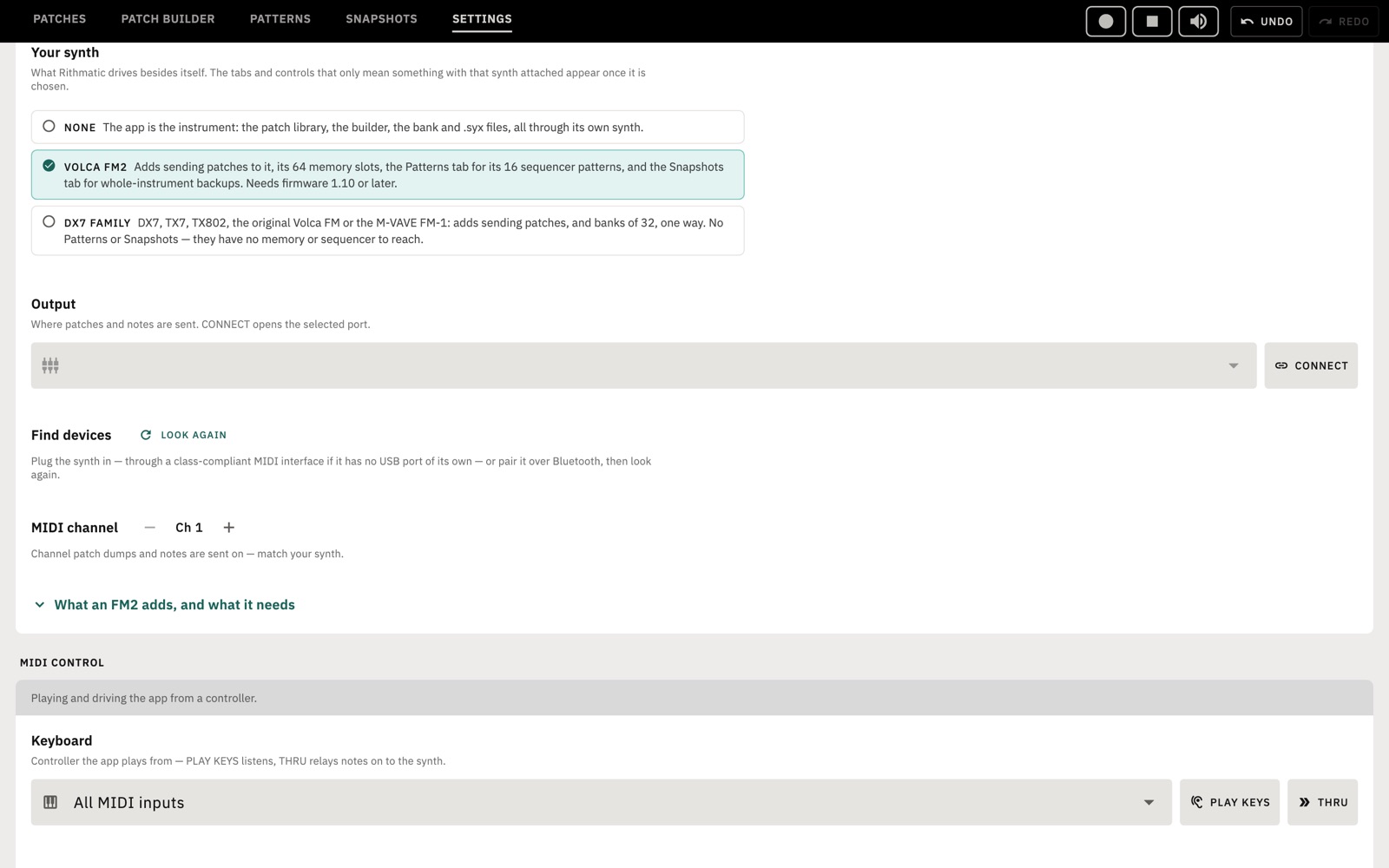
Connecting
- Turn on the synth and connect it over USB. If the synth has no USB port, use a class-compliant MIDI interface. On Apple devices you can also pair over Bluetooth MIDI.
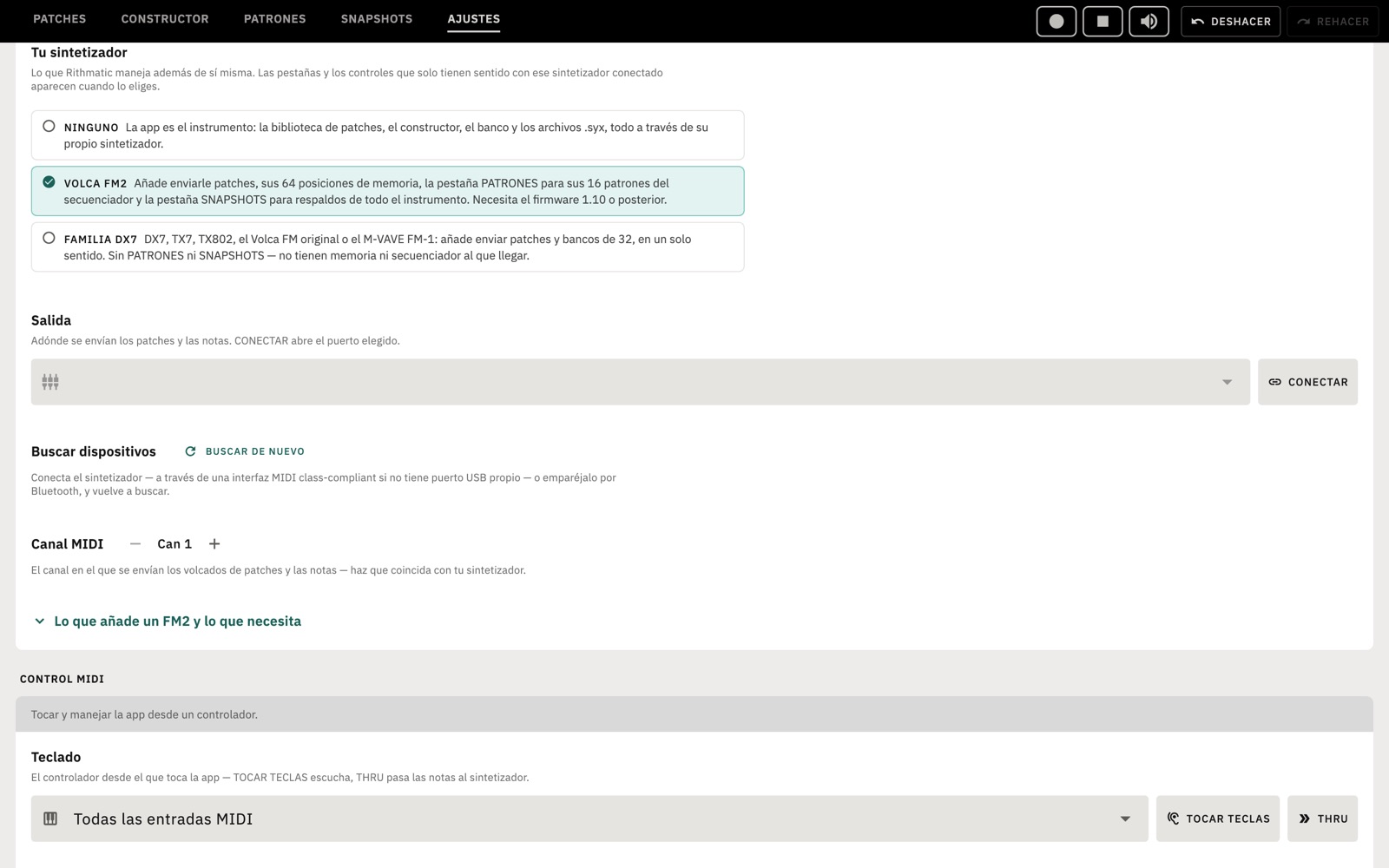
- In Settings › Hardware, choose VOLCA FM2 or DX7 FAMILY.
- Choose the Output port and tap CONNECT. Set the MIDI channel to match the synth. If the synth isn't listed, check the cable and tap LOOK AGAIN.
Korg Volca FM2
The FM2 needs firmware 1.10 or later. Because it can send data back, Rithmatic can do more with it than with other synths:
- The 64 pads show the FM2's 64 memory slots. Rithmatic reads the slots and can write patches to them. When you reorder pads, the slots are rewritten on the FM2; Rithmatic saves a backup first and checks each slot after writing it.
- Keys play in Settings › Sound sets whether the keys play the app (APP), the FM2 (VOLCA) or both (BOTH).
- The PATTERNS tab shows the FM2's 16 sequencer patterns. You can read them, load one into the sequencer, rename, duplicate, clear and write them back, and start and stop playback and set the tempo.
- The SNAPSHOTS tab backs up the whole FM2, all 64 patches and every sequence, at once. RESTORE TO FM2 writes a snapshot back, and first shows which slots will change.
DX7 family
The DX7 (mkI and mkII), TX7, TX802, original Volca FM and M-VAVE FM-1 receive patches but can't send data back. You can send the current patch, or the first 32 patches in your bank as a single bank. The Patterns and Snapshots tabs are only available with a Volca FM2.
Keys and shortcuts
| Key | Action |
|---|---|
| A S D F G H J K | White keys, C to C |
| W E T Y U | Black keys (W E T Z U on a German keyboard) |
| ← → ↑ ↓ | Select the next pad |
| Esc | Close the search, or exit full screen |
| ⌘1, ⌘2 | Patches, Patch Builder (Mac) |
| ⌘, | Settings |
| ⌘L | Change the patch |
| ⌘D | Play the patch of the day |
| ⌘B | Add the patch to your bank |
| ⌘Z, ⇧⌘Z | Undo, redo |
| ⌘O | Open a bank or patch |
| ⌘E | Export the bank as .syx |
| ⇧⌘S | Share / Import |
| ⇧⌘I | Import a patch from a code |
| ⌘/ | Show all keys and shortcuts |
Glossary
- Patch, voice
- A complete sound. The DX7 calls patches voices.
- Operator
- One of the six oscillators in a patch, each with its own envelope.
- Carrier
- An operator you hear.
- Modulator
- An operator that changes the sound of another operator.
- Algorithm
- The way the six operators are connected. There are 32.
- Ratio
- An operator's pitch as a multiple of the note played.
- Envelope (EG)
- How a level changes over the course of a note.
- LFO
- A slow oscillator used for vibrato and tremolo.
- Keyboard scaling
- How an operator's level changes from low notes to high notes.
- Bank
- A set of patches. The DX7 holds 32 at a time; your bank in Rithmatic can be any size.
- .syx
- The standard file format for DX7 patches.
- SysEx
- The type of MIDI message used to send patches.
For the full list, see Settings › Help & support › Synth terms in the app.
Troubleshooting
- No sound: check the speaker button in the header, which can mute everything, and Volume in Settings › Sound. If a synth is selected, check Keys play.
- MIDI keyboard doesn't play: in Settings › MIDI control, check the Keyboard setting and set the Listen channel to ALL.
- Synth isn't found: use a USB data cable rather than a charge-only cable, connect directly rather than through a hub, and tap LOOK AGAIN.
More answers are on the Support page at madewithbestpractice.com/rithmatic/support. For anything else, email [email protected].