
Getting started
The first time you open Chopmatic it loads Chopmatic Kit, a set of sixteen drums already cut into pads, so the first thing you touch makes a sound. From there, this is the whole journey in eight steps:
- Tap a pad on the CHOP tab to hear it.
- Tap SAMPLES and press CHOP IT on one of the breaks, or tap OPEN and pick a file of your own. Choose REPLACE when asked.
- Choose how to cut it, starting with BARS. Each slice becomes a pad.
- Go to SEQUENCE and press MAKE A KIT. Chopmatic picks the clearest kick, snare, hats and other sounds from your slices and gives each one a track.
- Tap cells in the grid to place hits, or choose a beat from PATTERN.
- Press PLAY. To play along and record, press RECORD PADS.
- Go to SONG and tap along the bars to lay your sequence out.
- Press EXPORT to take it away as a file.
You don't need an account, and nothing you open is uploaded. Everything works without a connection except the first SPLIT STEMS, which downloads its model once, and buying or restoring the unlock.
The screen
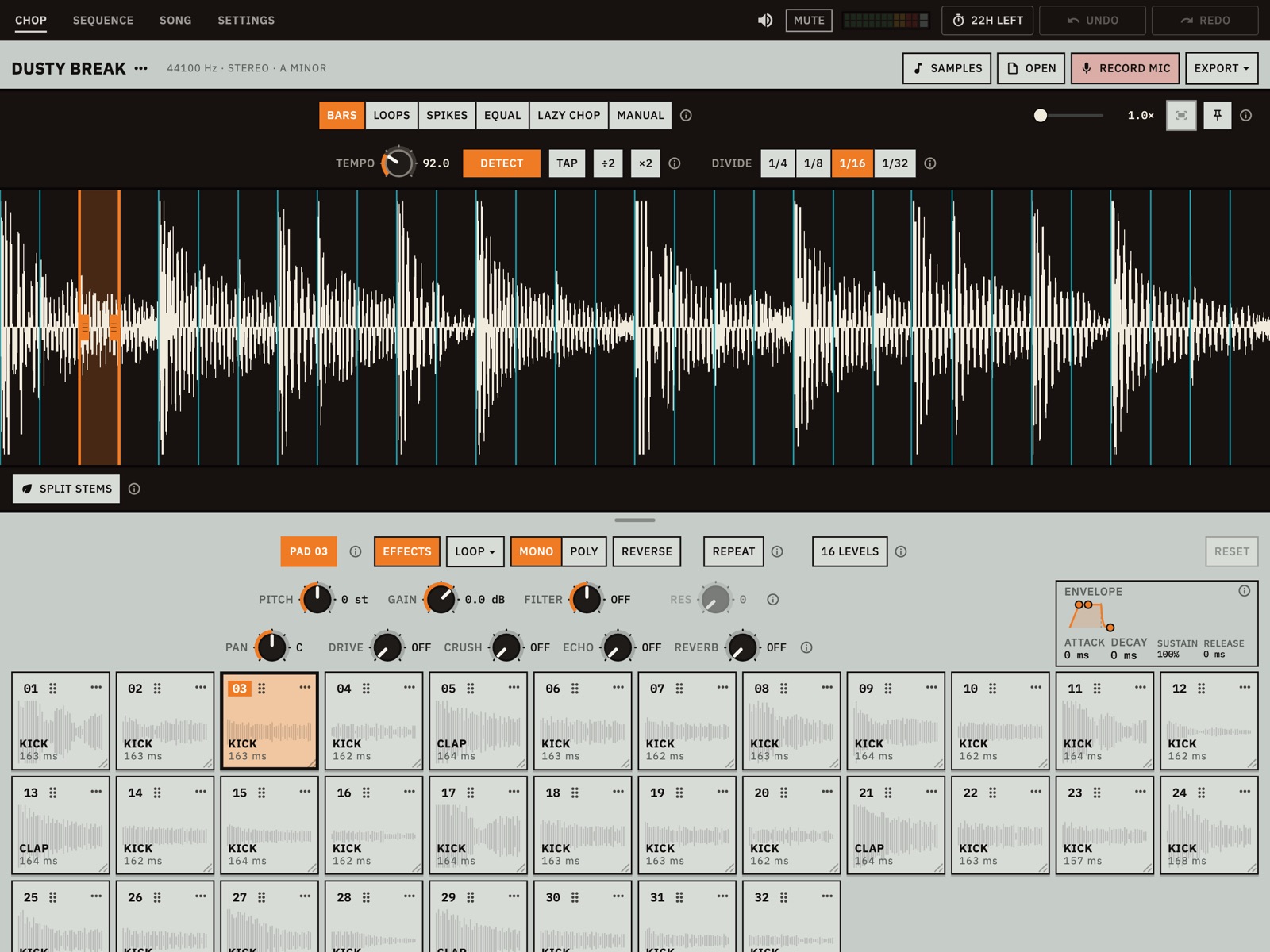
The four tabs
| Tab | What it is for |
|---|---|
| CHOP | The sample: bring it in, cut it, split it into stems and play its slices on pads. |
| SEQUENCE | Beats: a kit of up to 16 tracks and a grid of steps, with the mixer below. |
| SONG | The arrangement: your sequences laid out as blocks on a 64-bar timeline. |
| SETTINGS | Stems, look, MIDI, audio, export format and the unlock. |
How every tab is laid out
Each tab has a title row at the top, then the black screen, then tiles: pads on CHOP, tracks on SEQUENCE, sequences on SONG. Drag the small handle under the black screen to give it more or less room. Each tab remembers its own position.
Tiles
A tile shows its number, a grip of six dots, and ⋯, which opens its menu. Drag the small corner at the bottom right of a tile to make all the tiles in that grid bigger or smaller. A dot beside the number on a pad means it is in the kit.
Help on the panel
The small ⓘ beside a control explains it. Some of these notes mention a mouse or a Mac key, such as right-click or ⌘A. Chapter 15 says what to do on a touch screen.
Your work saves itself
Every change is saved about half a second after you make it, and the next launch opens where you left off. The exception is stems: Chopmatic reopens on the full sample and says which stem you were on, so anything built on a stem sounds different until you press SPLIT STEMS. Chopmatic keeps one session at a time. Opening a new sample doesn't start a blank project: your kit and sequences stay and play the new slices. To keep a piece of work separately, export it as a Session (see Exporting).
Bringing in sound
There are four ways to put a sample on CHOP.
SAMPLES
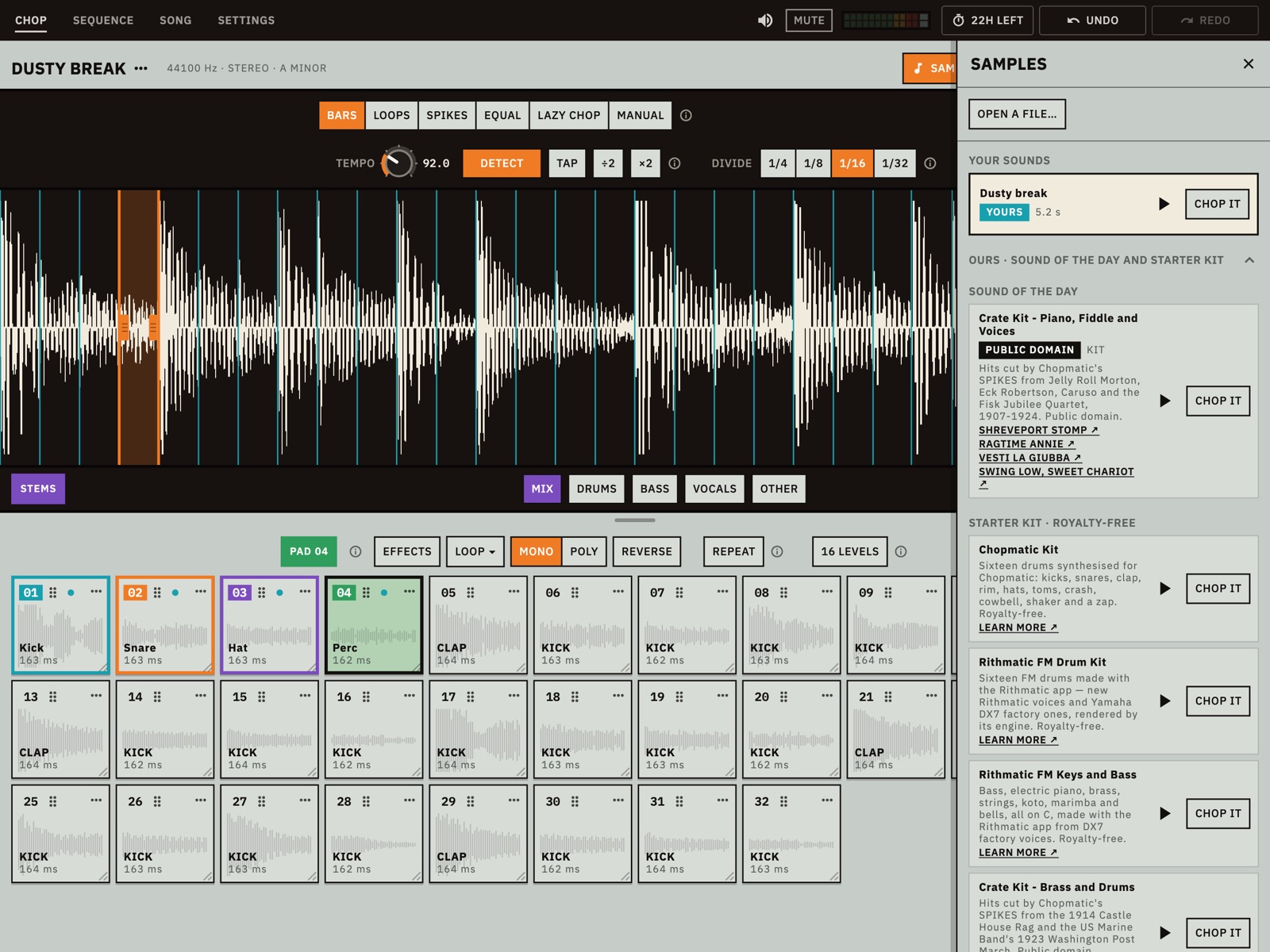
SAMPLES opens a panel of sounds that come with the app. The arrow plays a sound without touching what you're working on, and CHOP IT loads it. They are royalty-free: kits and breaks of our own, kits and loops made with our Rithmatic app, and public-domain records from 1907 to 1924. Each card says who made it. One changes every day under SOUND OF THE DAY. A starter sound opens in MANUAL, already cut at its markers.
Samples you open while the app is running are listed at the top under YOUR SOUNDS, so you can go back to one. On SEQUENCE the panel also offers ADD TO KIT (see The kit and the sequencer).
OPEN
OPEN shows the system's file picker. Before any sample is loaded, tapping the black screen does the same. Chopmatic opens WAV, AIFF, MP3, AAC, M4A and FLAC, and the soundtrack of a video. Audio keeps its own sample rate and channels. Other formats depend on what your device can decode.
A WAV with markers opens already cut at those markers, in
MANUAL, and if the file states its tempo Chopmatic uses it. A
.chopmatic session file opens the same way, through
OPEN.
RECORD MIC
RECORD MIC records from the device's microphone. Android asks for permission the first time. Anything playing stops first, the level meter shows the input on screens wide enough to show one, and the button turns into STOP with a clock. Press it to finish, and the take becomes the sample, named REC 01, REC 02 and so on.
Resampling
You can also turn a sequence or the whole song into a new sample. See Resampling.
ADD TO END or REPLACE
When a sample is already loaded, opening a file or a starter sound asks what to do with it. RECORD MIC and resampling replace the sample without asking.
- ADD TO END puts it after the sample, from the next bar line, and chops the two as one. The session's tempo stays. If the new sound has a clear tempo of its own, it is stretched to match with its pitch kept. If not, it goes on as it is. In MANUAL the cuts already there keep their places and the new part comes in as one slice. EQUAL and LOOPS cut the longer sample afresh. If you've split stems, each one now contains the whole new part, unseparated. To split the longer sample, close and reopen Chopmatic, then press SPLIT STEMS.
- REPLACE puts it in place of the sample. That sample's chops, cuts and slice names go, and so do sounds you added to the kit from elsewhere, whose tracks go MISSING or play a different slice. The tempo becomes the new sample's. The kit and sequences stay and play the new slices by pad number, and pad settings stay with the pad number.
A session file replaces everything, including the kit, the sequences, the song and the pad settings. UNDO brings back what was there.
Chopping
Chopping means cutting a sample into slices. Every slice is a pad. The modes sit at the top of the black screen. On a phone or small tablet they are a single menu that shows the current mode.
| Mode | How it cuts | Its controls |
|---|---|---|
| BARS | On the tempo grid. Lines close to a hit, within 35 milliseconds, move onto it. | TEMPO and DIVIDE: a slice every 1/4, 1/8, 1/16 or 1/32 note. |
| LOOPS | Finds stretches that repeat cleanly and puts one on each pad, marked SEAMLESS or GOOD. | TEMPO and BARS: 1/8, 1/4, ½, 1, 2, 4 or 8. A greyed length has no loops. |
| SPIKES | At each hit it hears. | SENSITIVITY: higher finds quieter hits. You can also drag the line on the waveform. |
| EQUAL | Into equal parts. | SLICES: 4, 8, 16, 32 or 64. |
| LAZY CHOP | By ear, while the sample plays. | START and STOP, and CLEAR SLICES. |
| MANUAL | Wherever you tap. | Tap the waveform and drag handles, and CLEAR SLICES. |
Tempo
One tempo runs the whole session: the grid in BARS and LOOPS, the sequencer, SONG and REPEAT. Chopmatic listens for it when a sample comes in. If it doesn't hear a clear tempo it says so, and the number you see is a guess from the sample's length.
- Drag the TEMPO knob, from 40 to 220 BPM.
- DETECT listens again. On a phone it is an ear icon.
- TAP sets the tempo from four or more taps.
- ÷2 and ×2 fix a guess that is half or double.
In BARS the grid starts on the first downbeat Chopmatic hears. If that's in the wrong place, select the slice where bar one should start, then choose Start the bars at the selected slice from the ⋯ beside the sample's name.
Cutting by hand
In MANUAL, tap the waveform to cut there, stopped or playing. Press a pad to select its slice, then drag the handles at its ends. Dragging an edge in BARS, SPIKES or EQUAL moves you to MANUAL and keeps the cuts on screen. So in SPIKES, set SENSITIVITY first.
In LAZY CHOP, press START and the sample plays from the top. Press any pad as it plays to cut where you hear it. If there's a hit just before or just after your press, the cut moves onto it. Otherwise it lands where you pressed. These cuts are the same ones MANUAL uses, so switch there to adjust them. CLEAR SLICES removes every cut and leaves the whole sample on one pad.
The waveform
Pinch or use the slider to zoom, and drag to move along the sample. Pressing a pad zooms to its slice. The fit button shows the whole sample again, and the pin beside it keeps the whole sample in view, so a pad lights its slice instead.
Slice names
Chopmatic listens to the start of each slice and names the pad: KICK, SNARE, CLAP, HAT, OPEN HAT, CYMBAL, TOM, PERC, 808, a chord, or a note such as C3. It's a guess, made from the sound alone, so a busy mix will fool it. To name a pad yourself, use ⋯ › Rename…. A name you give always wins, and clearing it brings the guess back. Names go with the slices into exported files, and MAKE A KIT and PATTERN use them to find your drums.
When the sample is tonal enough, its key appears after the sample rate at the top of the tab.
The sample menu
The ⋯ beside the sample's name holds what you do now and then:
- Rename… changes the sample's name.
- Stretch takes the sample to another tempo without changing its key, another key without changing its tempo, or both, up to 12 semitones either way. KEEP FORMANTS keeps a voice sounding like the same voice when it moves. It makes a new version of the sample, which UNDO takes back. As with opening a new sample, hand cuts, slice names and sounds added to the kit go, and a sample in MANUAL returns to BARS. Stems don't carry over, so split again afterwards.
- Start the bars at the selected slice appears in BARS.
Splitting stems
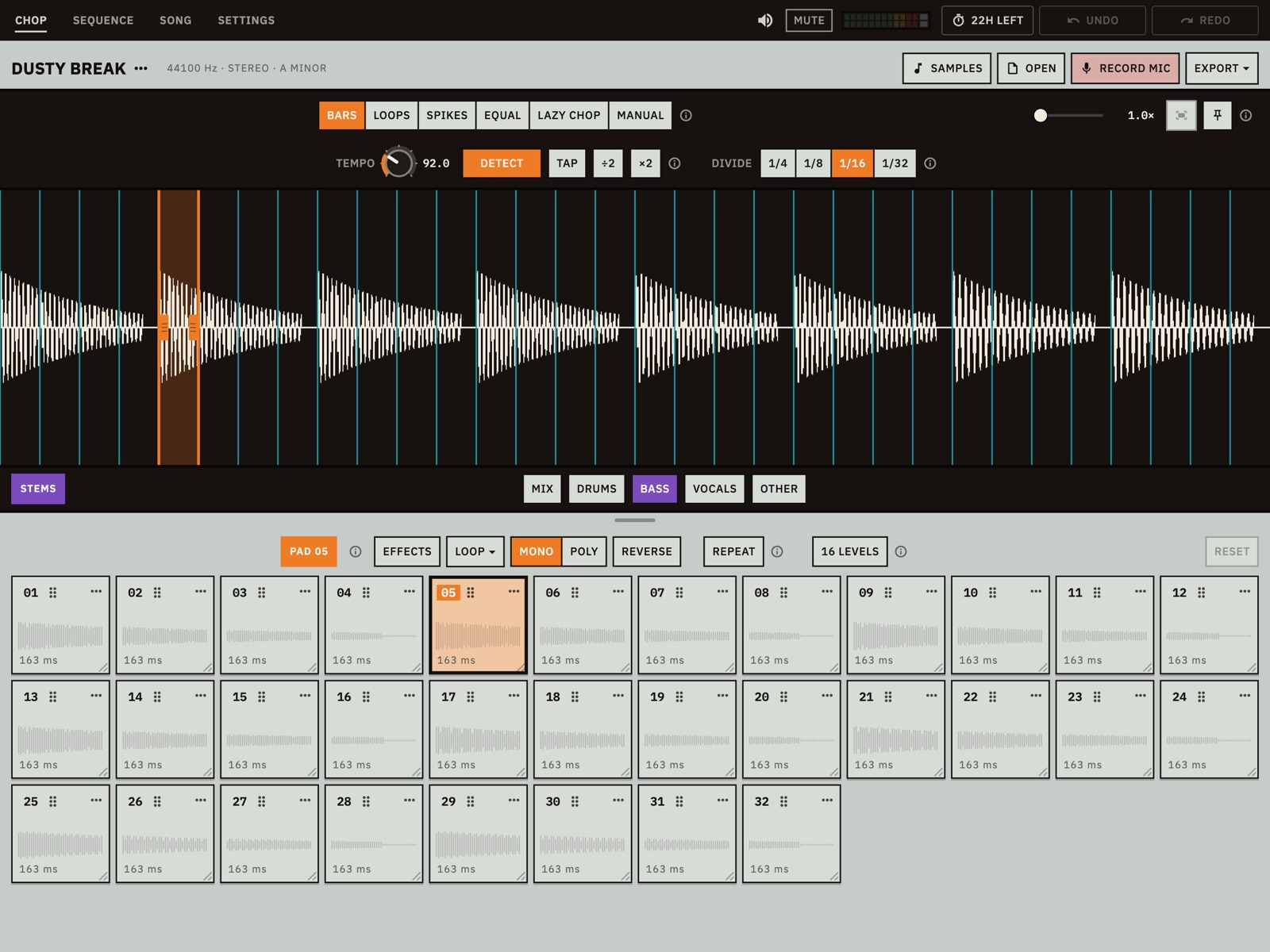
SPLIT STEMS, under the waveform, separates the sample into drums, bass, vocals and other parts. It runs on your device and nothing is uploaded. The first time, it downloads its model, about 79 MB, and checks it. The bar shows the download and then each stem in turn. After that it works offline.
When it finishes, switches for MIX, DRUMS, BASS, VOCALS and OTHER replace the button. Picking one swaps the audio the whole session plays from: the waveform, the slices, the pads, and the kit and sequences too. Automatic modes cut again on the new audio, and your kit tracks move to the nearest slice. MIX goes back to the full sample.
Stems are made for chopping and resampling, so expect a little bleed between them rather than a clean studio split.
Quality and cost
Both choices are in SETTINGS › STEMS and apply the next time you split. The figures are the ones the panel shows, and times and memory vary by device.
| Choice | What it does |
|---|---|
| MONO | The default. Each stem is mono. Fastest, and the least memory: the panel quotes about 0.35 GB for a four-minute song. |
| STEREO | The same separation with the stereo image kept. About a quarter longer and about twice the memory, 0.7 GB for a four-minute song. No extra download. |
| RANGE | 11 kHz or 16 kHz. 16 kHz keeps cymbals and hats with the drums, with the same download, and takes about half as long again. |
Chopmatic keeps the stems it has made, so a sample is only split once. The panel shows how much space they take, up to 1 GB, after which the longest unused are removed. CLEAR gives the space back. A session file doesn't contain stems, but it remembers which one you were on and selects it again after you split.
Playing the pads
Press a pad to play its slice and select it. The bar above the pads shows the selected pad as PAD 03, and everything in that area changes that pad only. Settings stay with the pad wherever it plays: pressed, in a sequence or from MIDI. On a phone, slide the rows sideways when a › shows there's more.
How a pad plays
| Control | What it does |
|---|---|
| LOOP | Goes round while you hold it, then plays out to its end when you let go. For a phrase you want to hang on to. |
| ONE SHOT | Plays all the way through, however short the tap. For drums. |
| GATE | Plays only while you hold it. For cutting a note or a word short. |
| MONO | Pressing a pad stops any other pad still playing, so chops of a loop don't pile up. |
| POLY | Pads play over each other, as drums do. The kit on SEQUENCE has its own switch. |
| REVERSE | Plays the slice backwards. |
A new sample opens in MONO. A kit of one-shot sounds, such as a starter kit, opens in POLY.
EFFECTS
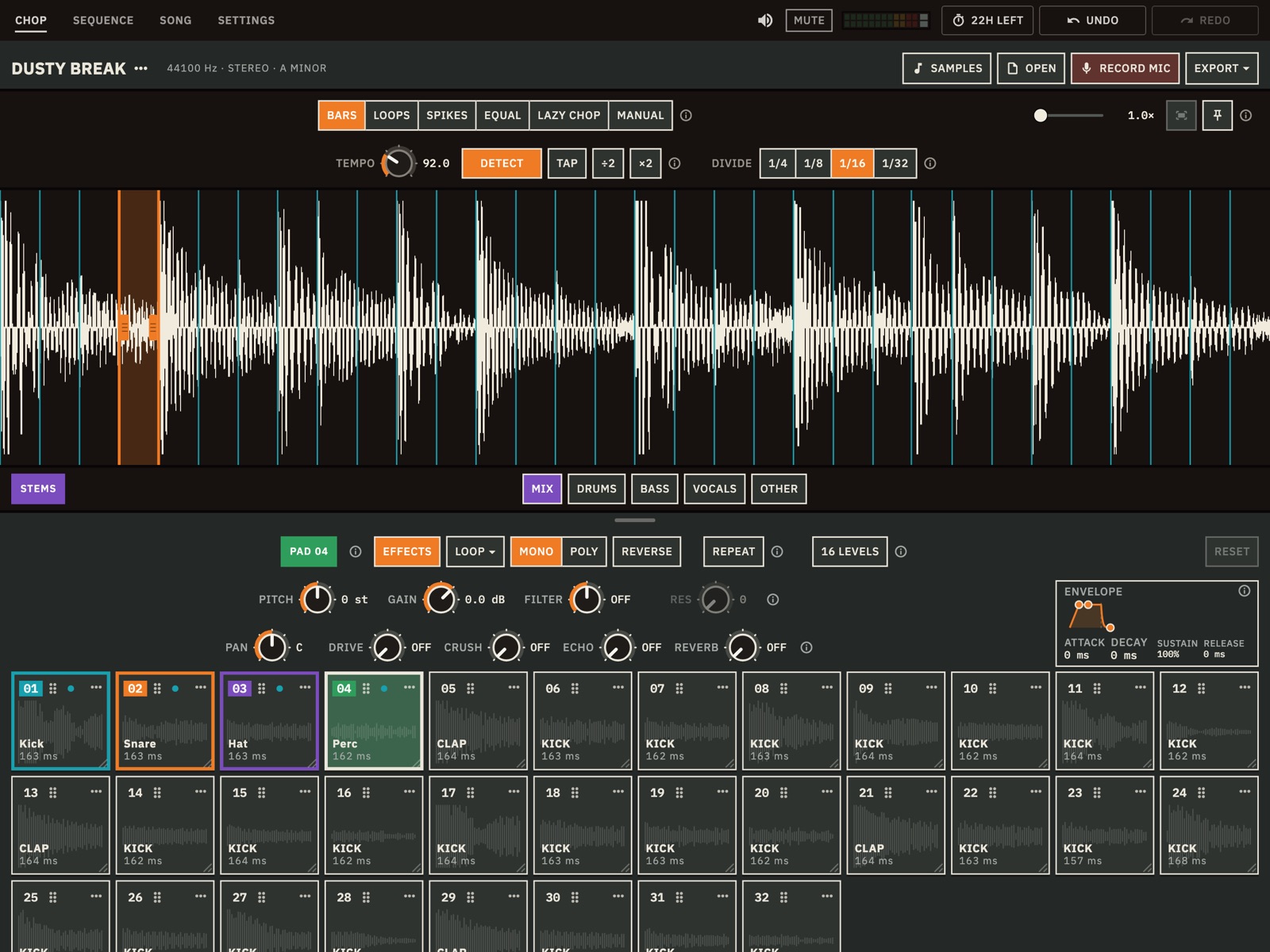
EFFECTS opens the selected pad's knobs and envelope. Close it and the pads move back up under the waveform.
| Knob | What it does |
|---|---|
| PITCH | In whole semitones, 24 down to 24 up. Like a classic sampler, higher also means shorter. |
| GAIN | From −24 to +12 dB. |
| FILTER | Left takes off the highs, right takes off the lows, and the middle is off. |
| RES | Makes the filter ring where it cuts. |
| PAN | Left or right. |
| DRIVE | Thickens the sound, up to a growl. |
| CRUSH | Makes it lo-fi with fewer bits and a lower rate. |
| ECHO | How much of the pad repeats. The time between repeats is one shared setting, under ECHO on SEQUENCE. |
| REVERB | Puts it in a room. |
In ENVELOPE, drag the dots to shape each hit: ATTACK is how long it takes to fade in, DECAY how long to drop to SUSTAIN, the level it holds while the pad is held, and RELEASE how long it fades after you let go.
RESET puts the pad back as it was cut. RESET EFFECTS does the same for the knobs, effects and envelope, and leaves its switches alone.
REPEAT
With REPEAT on, holding a pad plays it again and again in time with the tempo, for a drum roll or a stutter. Choose 1/4, 1/8, 1/16, 1/32, 1/8T or 1/16T beside it.
16 LEVELS
16 LEVELS spreads one sound across 16 pads, each a little different. On CHOP it uses the selected pad. On SEQUENCE it uses the selected track, and the level you press is the one you place on the grid.
- PITCH: a semitone apart, from 7 below to 8 above. The pad marked AS CUT is unchanged.
- VELOCITY: each pad a little louder.
- FILTER: each pad a little brighter, up to OPEN.
Choke groups
Turn on CHOKE GROUPS in SETTINGS › ADVANCED and a CHOKE switch joins the pad's controls. Tap it to step through off and groups 1 to 4. Pads in the same group cut each other off, like an open and a closed hi-hat.
The kit and the sequencer
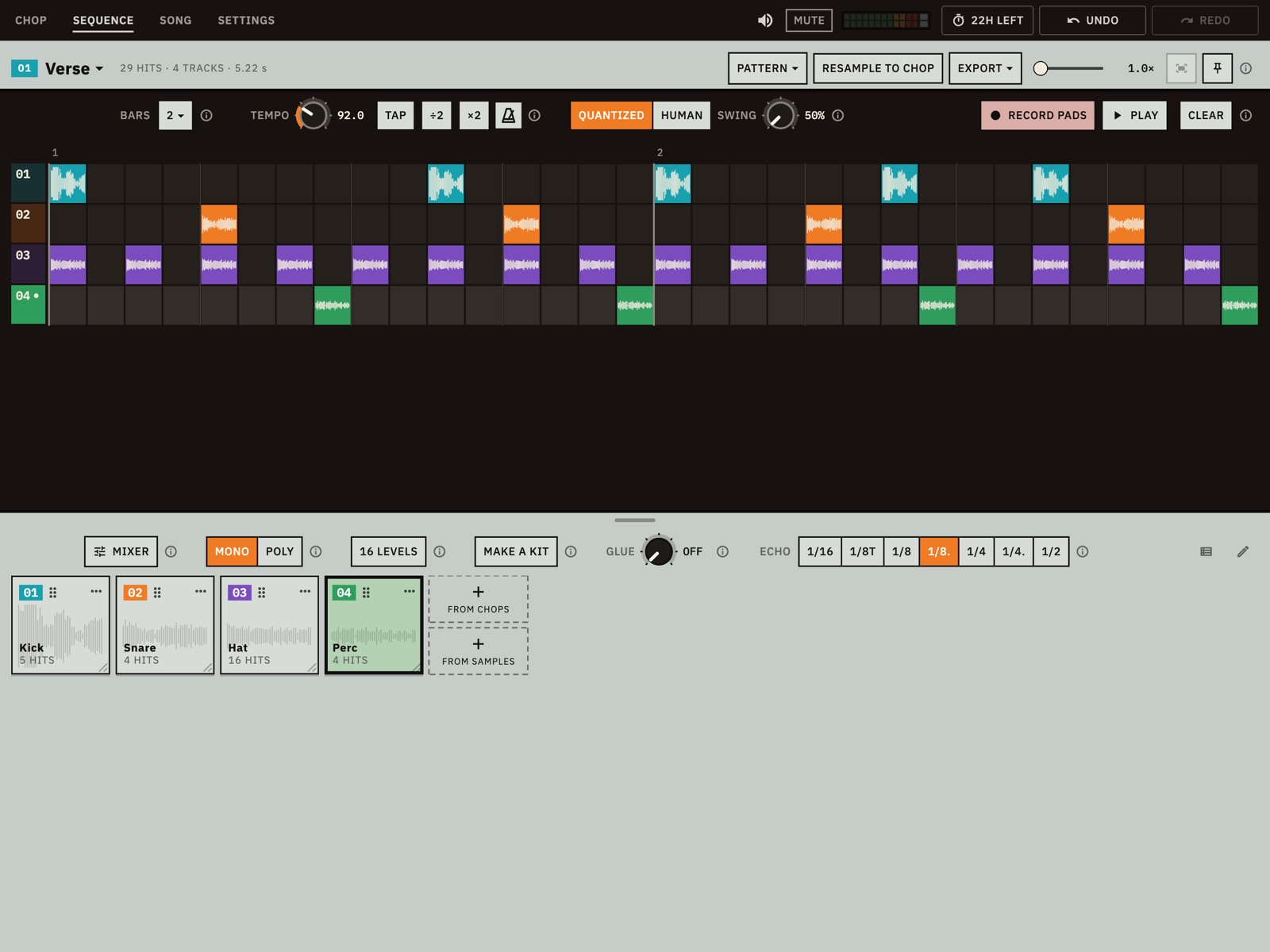
The kit is the set of sounds you sequence: up to 16 tracks, one sound each, shared by all 16 sequences. Switching sequence keeps the same rows.
Filling the kit
- MAKE A KIT finds the clearest kick, snare, hats, a percussion hit and a note among your slices and gives each a track. It needs named slices, so give it a moment after cutting.
- FROM CHOPS shows every slice. Tap one to hear it and add it.
- FROM SAMPLES opens the SAMPLES panel, where ADD TO KIT and ADD TO KIT FROM A FILE… bring in a sound from outside the sample. A kit or a sliced WAV adds its slices, as many as there is room for. The rest become pads on CHOP.
- On CHOP, use a pad's ⋯ › Add to kit.
A kit MONO means each hit stops whatever is still ringing. POLY lets hits ring over each other, so a kick and a hat on one step both sound. A new loop's kit opens in MONO, and MAKE A KIT on an empty kit changes it to POLY.
A track's ⋯ offers Open in CHOP, the mixer, Rename…, Color…, Duplicate, Change chop (which keeps its hits), Mute, Solo, Export… and Remove track. Removing a track takes its hits out of every sequence. Use the pencil at the right of the bar over the tiles for REMOVE ALL. The icon beside it shows the kit as a list.
Placing hits
- Tap a cell to place or clear a hit. Each cell is a 16th note, and you hear the hit as it lands unless HEAR HITS is off.
- To paint along a row, press and hold, then drag.
- Tap a row's number to pick its track.
- Take hold of a hit and drag to move it by whole 16ths. Hold still for a moment first, and it comes off the grid and moves in fine steps, for feel.
- Swipe along the grid to scroll when it's wider than the screen.
Each hit is drawn as a block as long as its sound rings, with the waveform on it. The paler part is still sounding.
Starting from a pattern
PATTERN writes a beat onto your kick, snare and hat tracks, on every bar of the sequence: Boom bap, House, Trap or Breakbeat. It replaces what those tracks had and sets the swing, and one UNDO takes it back. If no track is named or heard as a kick, snare or hat, use MAKE A KIT or rename a pad.
Recording
RECORD PADS starts the loop and records what you play. On a phone it is a red dot. Each press goes to the nearest 16th, and Chopmatic also keeps exactly when you played it. If you play a pad that isn't in the kit, it joins the kit while there's room. Everything from pressing RECORD PADS to stopping is one UNDO.
| Control | What it does |
|---|---|
| QUANTIZED | Plays recorded hits exactly on the grid. |
| HUMAN | Plays them where you really played them. Each hit keeps both timings, so you can switch at any time. |
| SWING | From 50% to 75%. 50% is straight, and 66% feels like triplets. Every sequence has its own. It moves hits on the grid, and HUMAN hits stay where you played them. |
| BARS | The sequence's length: 1, 2, 4, 8 or 16 bars. |
| CLEAR | Empties the sequence of its hits. |
The metronome is the icon beside ×2 on SEQUENCE and SONG. It is never exported.
The 16 sequences
Tap the sequence's name to switch between sequences. The foot of that menu has New, Duplicate and Rename.
The mixer
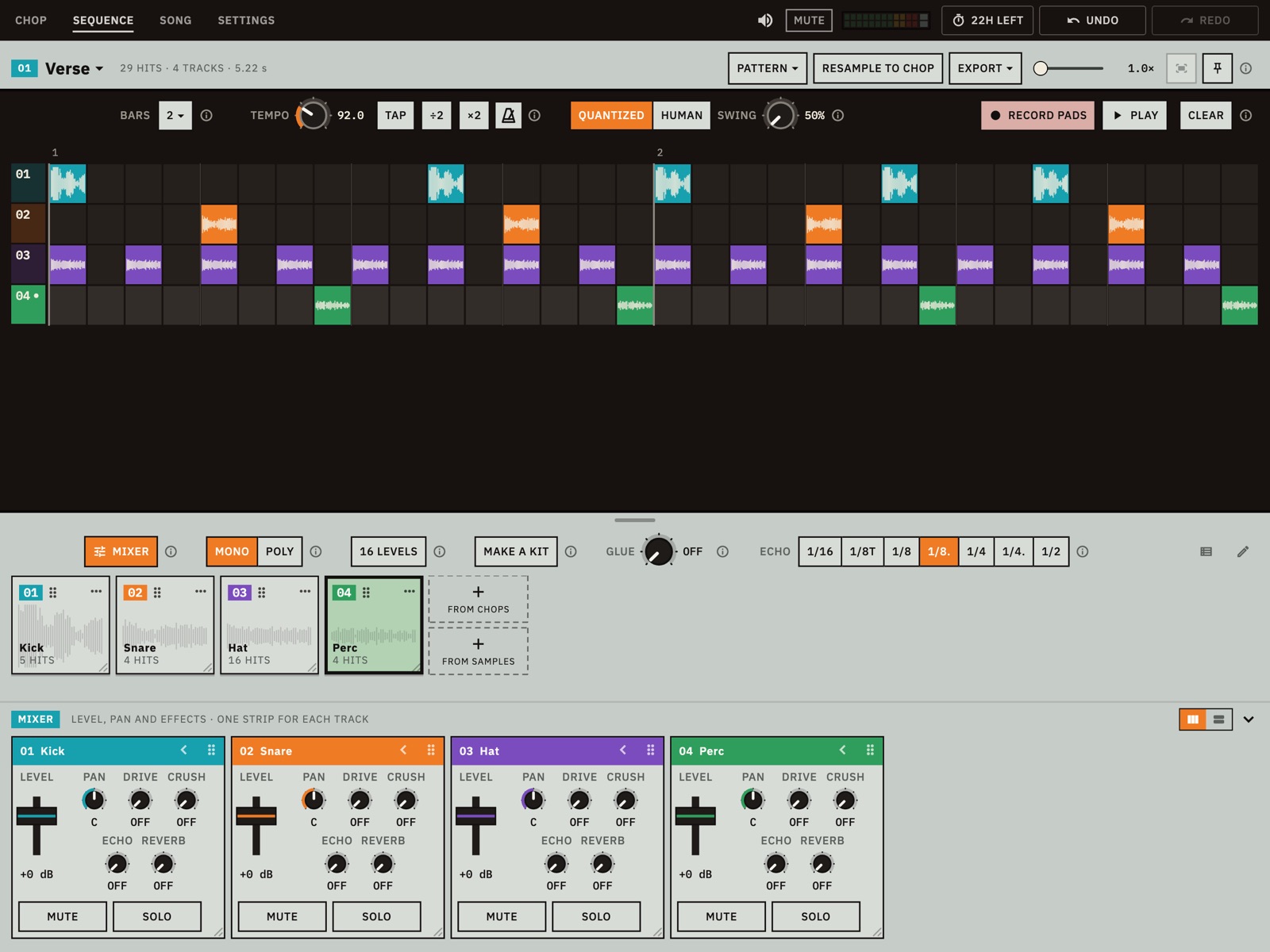
MIXER, over the kit, brings up a strip for each track: LEVEL, PAN, DRIVE, CRUSH, ECHO, REVERB, MUTE and SOLO. Except for MUTE and SOLO, these are the same controls as the pad's GAIN and EFFECTS knobs on CHOP: turn one and the pad changes too.
The switch on the mixer's bar lays the strips tall or flat. Each strip's chevron folds it to a narrow header. Drag a strip's corner to size them all, and its handle to move its track. Tap the bar to put the mixer away.
GLUE and ECHO
Two controls beside the kit work on the whole beat:
- GLUE squeezes the whole mix a little: loud hits are held down and quiet ones come up, so the beat sits together. Far left is OFF.
- ECHO sets how far apart the repeats are, for every track at once and always in time with the tempo: 1/16, 1/8T, 1/8, 1/8., 1/4, 1/4. or 1/2. Each track's ECHO knob sets how much of it repeats.
Arranging a song
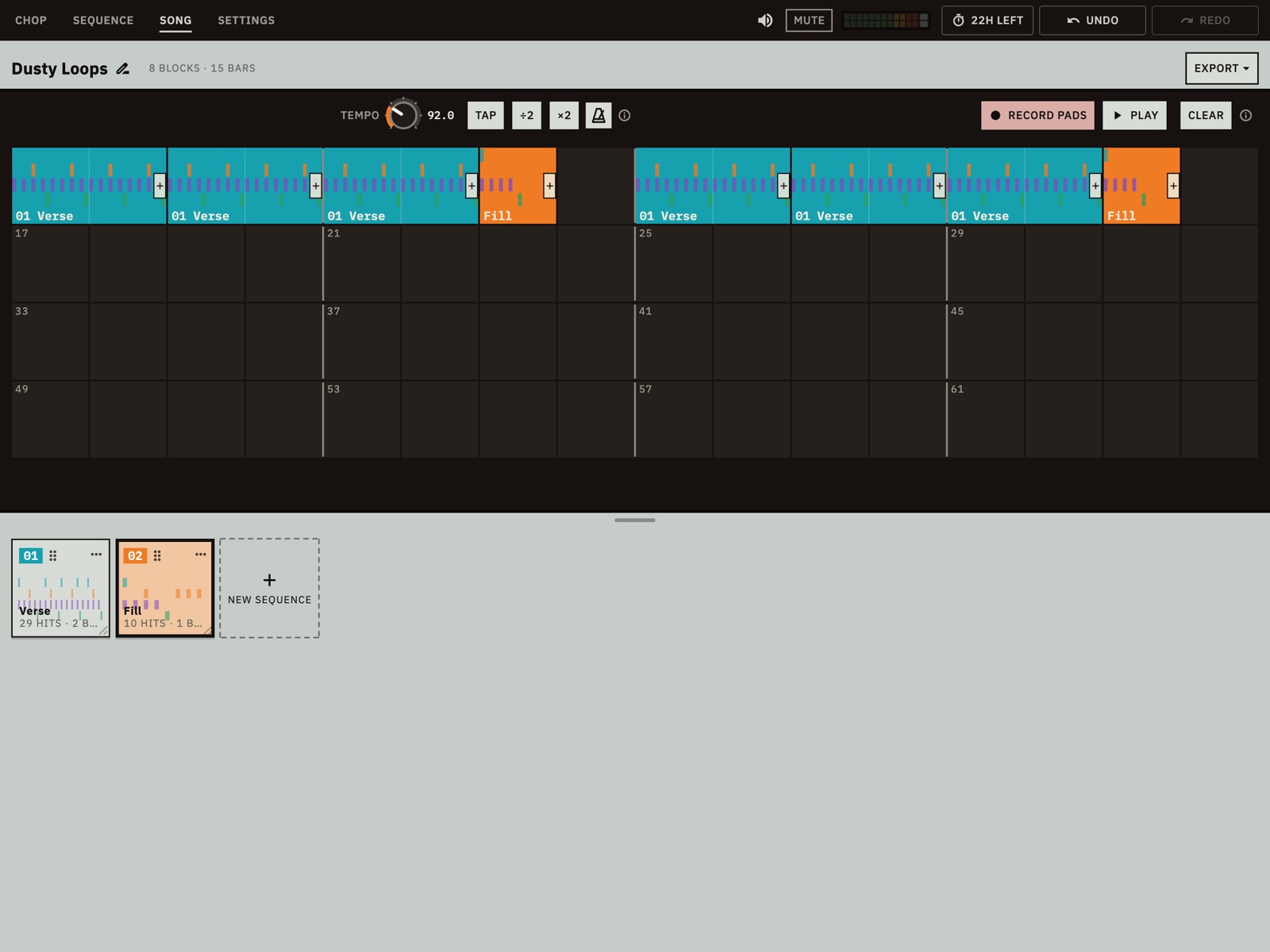
SONG is a timeline of 64 bars, 16 to a row (8 on a phone). The tiles below are your sequences. Tapping one also makes it the sequence open on SEQUENCE.
- Pick a sequence, then tap an empty bar to place it. Press, hold and drag along empty bars to lay it down back to back.
- Tap a block to pick it, then use its ✕ to remove it.
- Drag a block to move it.
- Drag a block's right edge to repeat it.
- You can also carry a sequence's tile up onto a bar.
PLAY runs from the first bar to the end of the last block, with gaps silent, and then comes round again. CLEAR empties the song. Tap the pencil beside the song's name to rename it.
Press RECORD PADS here to play the arrangement in: press sequence tiles while the song plays, and each one lands at the bar you pressed it in, or the next bar if you were more than halfway through.
A sequence's ⋯ has Open in SEQUENCE, Rename…, Color…, Duplicate, Export…, Remove from song and Clear hits. A tile with no hits fades and shows ADD HITS →.
Resampling
Resampling turns what you've made into a new sample, so a beat made of slices can be sliced again. Three places do it:
- RESAMPLE TO CHOP on SEQUENCE bounces the sequence at its tempo and cuts it in SPIKES, at its hits.
- EXPORT › Resample to CHOP on SEQUENCE or SONG makes that sequence or the song the sample, and you choose how to cut it.
- With drop points on, pick up a sequence's tile on SONG by its grip and let go on RESAMPLE.
The new sample takes the place of the one on CHOP. Your kit and sequences stay, and now play slices of the resample, so they may sound quite different. RESAMPLE TO CHOP keeps the tempo. EXPORT › Resample to CHOP listens for it again, so check it, because your sequences follow it. UNDO takes it back. If you want to keep the original arrangement, export a Session first.
Resampling isn't an export, and it stays free after the trial.
Exporting
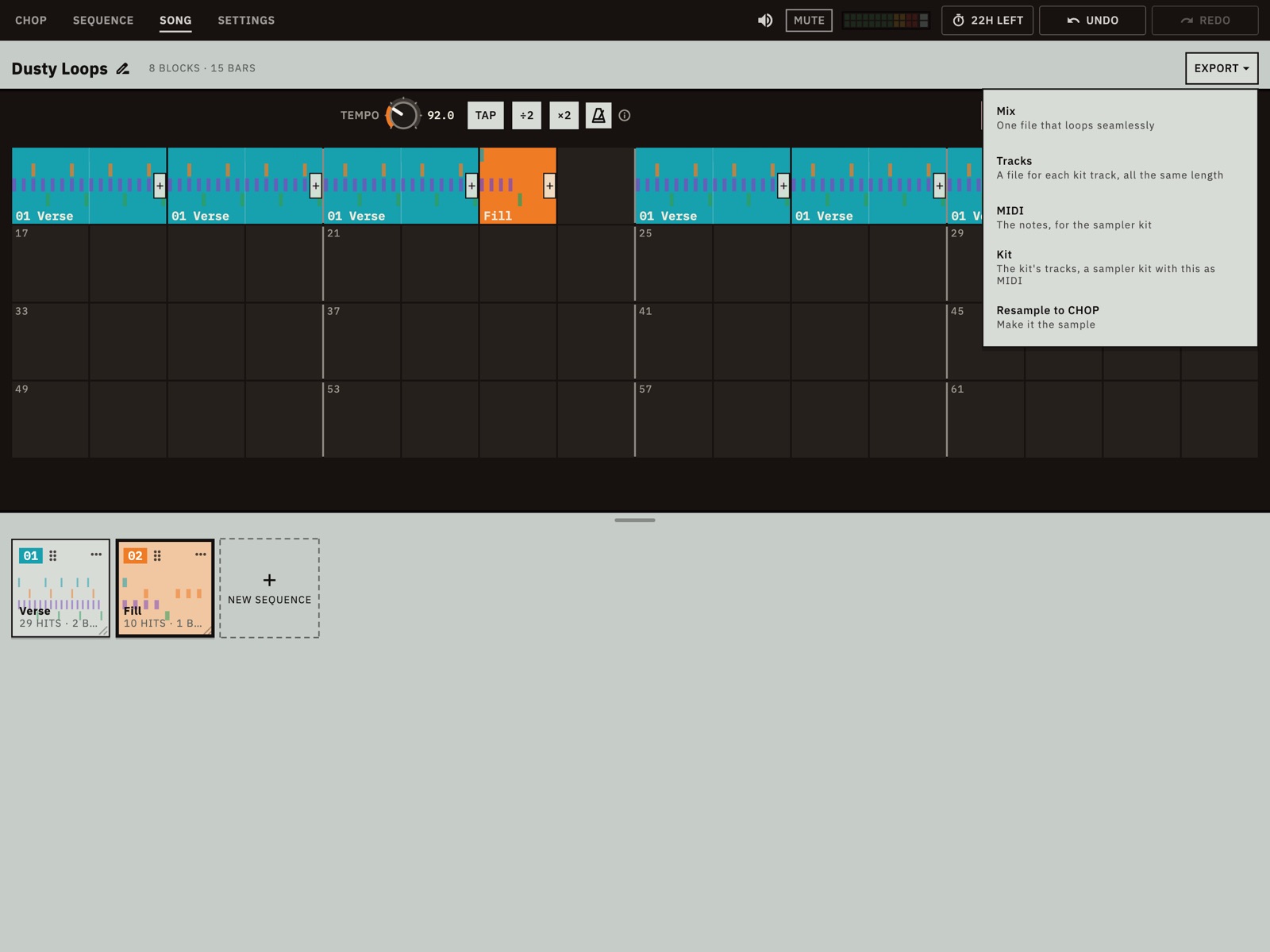
Each tab's EXPORT writes what that tab makes. On Android, Chopmatic asks you to pick a folder, and every file goes straight into it, so an export of many files is tidier in a new, empty folder. Pick one on internal storage, inside Documents or Downloads, not on a memory card. A file with the same name is overwritten without asking. A notice says what was written and where. Slices, Sliced WAV, Mix and Tracks use the stem you have selected. All exports need the trial or the unlock.
From CHOP
| Choice | What you get |
|---|---|
| Slices | A file for each slice, sounding as its pad does, knobs and effects included. Echo and reverb tails stop at the end of the slice, and the echo doesn't use the time set under ECHO. Files carry the slice's name. |
| Sampler kit | The slices with SFZ and Decent Sampler presets, mapped from C1, one slice a key. Loops, GATE pads and choke groups carry over. |
| OP-1 drum kit | One mono 44.1 kHz AIF of up to 24 slices and 12 seconds. |
| Browser kit | One web page that plays the pads and the open sequence in a browser, with nothing to install. It holds the first 16 pads and any kit slices beyond them. Good for sending to someone. |
| Sliced WAV | The whole sample in one WAV with its tempo and a marker at every slice. It's always a WAV, even if FORMAT says AIFF. |
| Stems | A file for each stem. Listed once you've split. |
| Session | One .chopmatic file: the sample and everything done to it. Stems aren't included. |
From SEQUENCE and SONG
| Choice | What you get |
|---|---|
| Mix | One file that loops seamlessly, through GLUE and the echo. |
| Tracks | A file for each kit track that has hits, all the same length. GLUE is left off. |
| MIDI | The notes, as a MIDI file numbered for CHOP's Sampler kit, not this menu's Kit. 16 LEVELS pitch and filter aren't included. |
| Kit | The kit's tracks as a sampler kit, with SFZ and Decent Sampler presets and a MIDI file of the sequence or song. |
| Resample to CHOP | Not a file: see Resampling. |
Mix, Tracks and MIDI leave out muted tracks, and with SOLO on they leave out every track that isn't soloed.
From a tile
⋯ › Export… on a pad or a track writes that one slice. On a sequence's tile on SONG it writes that sequence's mix.
Format
SETTINGS › EXPORT picks WAV 16-BIT, WAV 24-BIT (the default), WAV 32-BIT FLOAT, AIFF 16-BIT or AIFF 24-BIT for slices, kits, mixes, tracks and stems. WAV files can also carry the tempo, root note, loop points and markers that other samplers read. AIFF files carry the audio only. The OP-1 and browser kits have their own formats. The master volume and the metronome are never exported.
MIDI controllers
Connect a USB MIDI controller to your device; you may need an adapter. Chopmatic looks for controllers as they appear and whenever you come back to the app, and SETTINGS › MIDI names what it is listening to. Chopmatic only listens. It doesn't send MIDI and doesn't follow MIDI clock.
What works with no setup
- Notes from C1 upward play the pads, one note each: C1 is pad 01, C♯1 is pad 02. A note above your last slice does nothing. Here C1 is MIDI note 36, the numbering pad controllers usually start from.
- Velocity sets how loud a pad plays.
- Pitch bend moves pads you play by up to 2 semitones. It doesn't bend hits the sequencer plays.
CHANNEL sets the MIDI channel to listen to: ALL or 1 to 16.
CONTROLLER presets
CONTROLLER puts a popular controller's knobs on the panel as it comes from the box, and assumes its factory settings. Its pads play if they send notes from C1 up. If yours is plugged in, the menu says so.
| Preset | What it maps |
|---|---|
| Akai MPK Mini (mk3) | Pads play; the eight knobs shape the selected pad. |
| Akai MPK Mini (mk1, mk2) | Pads play; the eight knobs shape the selected pad. |
| Akai MPD218 | Pads play; the six knobs shape the selected pad. |
| Arturia MiniLab 3 | Pads play; knobs shape the selected pad; faders are tracks 1 to 4. |
| Novation Launchkey Mini (mk3) | Pads play in drum mode; knobs shape the selected pad; its play button plays. |
| Korg nanoKONTROL2 | Eight strips are the mixer: fader, knob for pan, S and M, with its play and stop buttons. |
MIDI LEARN
- Go to SETTINGS › MIDI and press MIDI LEARN. Chopmatic goes back to CHOP.
- Tap a control on the panel.
- Move a knob, press a button or hit a pad on your controller.
- Repeat for other controls, moving between tabs as you need, then press DONE. CANCEL throws the changes away.
You can learn the tempo controls, PLAY and STOP, UNDO and REDO, REPEAT, the selected pad's knobs and REVERSE, GLUE, the echo time, SWING, any pad, and every mixer strip. A trigger drives one control at a time. Knobs need a CC, because a note has no position to give. A button that drives a pad through a CC plays at full velocity.
A learned or preset PLAY plays the song on SONG and the sequence on every other tab. Your mapping is kept until you change it. RESET goes back to the pads alone.
Settings
| Section | Contents |
|---|---|
| CHOPMATIC PRO | Where your trial or unlock stands, with UNLOCK and RESTORE PURCHASES. |
| STEMS | MONO or STEREO, RANGE, and the kept stems with CLEAR. |
| LOOK | THEME: SYSTEM, LIGHT or DARK. ACCENT: the colour that stands in for the orange. |
| MIDI | What's being heard, CONTROLLER, CHANNEL, RESET and MIDI LEARN. |
| AUDIO | LATENCY: LOW, BALANCED or SAFE. Lower answers your finger sooner. Raise it if you hear crackles. |
| EXPORT | FORMAT for audio exports. |
| SEQUENCE | HEAR HITS: hear each hit as you place it. |
| DRAG AND DROP | DROP POINTS: pick up a pad or tile by its grip and drop points rise, such as ADD TO KIT, REVERSE, EXPORT… and OPEN IN MIXER. Off, the grips only move tiles around, and pads on CHOP have none. |
| ADVANCED | CHOKE GROUPS. |
The foot of the page has RATE CHOPMATIC and LICENCES, which lists the software and sounds Chopmatic is built on.
What is free and what is unlocked
Chopmatic is a free download. Everything is open for 24 hours from the first time you open it, and during that time a badge at the top shows what's left. After that, one purchase unlocks the rest for good. There's no subscription and no account. The price is shown in the app, in your currency, by Google Play.
| After the 24 hours | What it covers |
|---|---|
| Stays free | Opening and recording samples, chopping in every mode, the pads and all their sounds, SEQUENCE, SONG, the mixer, resampling and saving as you go. |
| Needs the unlock | Every EXPORT, including sessions and a tile's Export…, and SPLIT STEMS. |
Use SETTINGS › CHOPMATIC PRO to buy, or tap the badge during the trial. After you reinstall or move to a new device, press RESTORE PURCHASES there.
If you bought Chopmatic while it was a paid app, it stays unlocked on the device where you installed it. Once you've opened version 1.0.1 there, Chopmatic records this in its settings, which Android includes in your backup, so a reinstall that restores that backup should stay unlocked too. If it asks you to pay, write to [email protected] with your receipt.
Phones, tablets and other platforms
Chopmatic 1.0.1 is on Android, through Google Play, and needs Android 7.0 or later. Versions for iPhone, iPad and Mac, and a plugin for iPad and Mac, are coming later. They aren't on sale yet, so this guide doesn't cover them.
On a phone
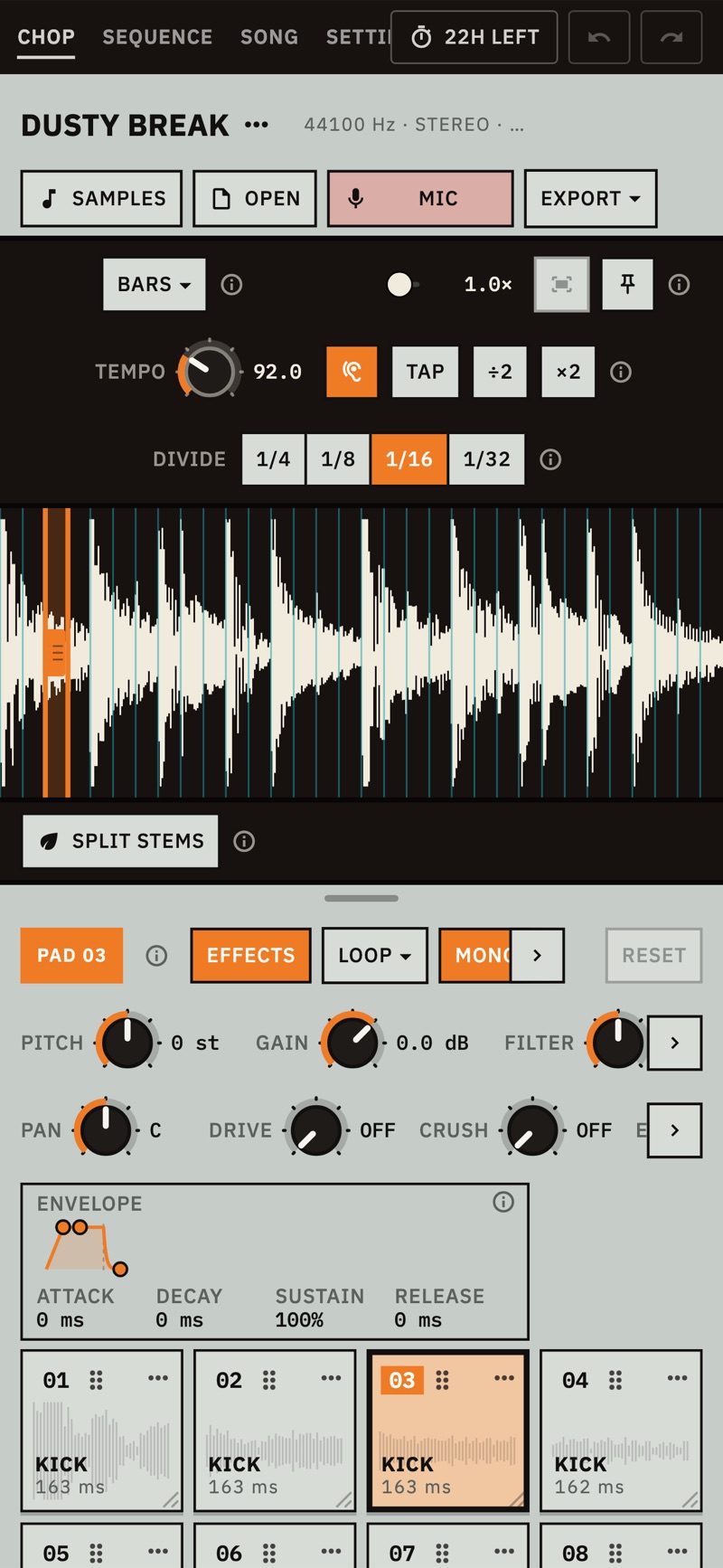
The same controls are there, with less room for words:
- RECORD MIC says MIC.
- RECORD PADS, PLAY and STOP are icons: a red dot, a triangle and a square.
- DETECT is an ear.
- UNDO and REDO are arrows.
- The cut modes and BARS are menus.
- The master volume, MUTE and the level meter only show on wider screens.
- Strips wider than the screen slide sideways, and a ‹ or › shows there's more.
Touch instead of a mouse
Some ⓘ notes describe a mouse or keyboard. On a touch screen, press and hold before you drag to paint hits on the grid or lay blocks on the timeline, and use a block's ✕ to remove it. Picking several hits or blocks at once, and a block's right-click menu, need a mouse or keyboard.
Folding phones
Half open with the fold running across the screen, a folding Android phone shows the black screen on the upright half and the tiles on the flat half, ready to play.
Glossary
- Sample
- The sound on CHOP that everything is cut from.
- Slice, chop
- One cut piece of the sample. Each has a pad.
- Pad
- A tile on CHOP that plays one slice, with its own settings.
- Kit
- Up to 16 sounds you can sequence, shared by all the sequences.
- Track
- One sound in the kit, and its row on the grid.
- Hit
- One placed or recorded sound on a sequence.
- Step
- A cell on the grid: a 16th note.
- Sequence
- A loop of 1 to 16 bars of hits. A session has 16.
- Block
- A sequence placed on the song's timeline.
- Session
- Your sample and everything done to it. It saves itself, and exports as a
.chopmaticfile. - Stem
- One separated part of a sample: drums, bass, vocals or other.
- Transient
- The sharp start of a sound. SPIKES cuts at these.
- Quantized
- Moved exactly onto the grid.
- Swing
- Delaying every second 16th note, for a looser feel.
- Resample
- Bounce a sequence or song into a new sample.
- Choke group
- Pads that cut each other off.
- Envelope
- How a sound's level changes over a hit.
- Velocity
- How hard a MIDI note was played.
- CC
- A MIDI control change, the message a knob or fader sends.
Troubleshooting
A file won't open
Chopmatic uses your device's own decoders for everything except plain WAV and AIFF, so what opens depends a little on the device. A compressed AIFF may not. Try converting the file to WAV.
The tempo is wrong or "No clear tempo heard"
Press ÷2 or ×2 if it's half or double. Otherwise press TAP four or more times along with the sample, or turn TEMPO.
LOOPS says "No clean loops"
Try one of the lengths it offers. If there are none, check the tempo, or cut the sample with BARS or SPIKES.
MAKE A KIT or PATTERN doesn't work
MAKE A KIT needs slices it can name, so wait a moment after cutting. If it hears no drums or notes, add slices with FROM CHOPS. PATTERN needs a track named or heard as a kick, snare or hat, so rename a pad if it says the kit has none.
A track says MISSING
The slice it played no longer exists. Use the track's ⋯ › Change chop.
SPLIT STEMS fails the first time
The first split needs a connection for the 79 MB download. Check you're online and try again. A download that stops partway picks up what's missing.
My stems have gone
Stretch makes a new sample, so split again. Stems also aren't restored when you reopen Chopmatic: press SPLIT STEMS, which uses the kept stems without separating again. After the trial this needs the unlock.
RECORD MIC says it isn't allowed the microphone
Allow the microphone for Chopmatic in your device's settings, then press RECORD MIC again.
Crackles when playing
Raise LATENCY in SETTINGS › AUDIO.
An export says the system wouldn't let the app write
Export again and pick a folder inside Documents or Downloads on internal storage. Do the same if nothing happens after you pick a folder.
My controller does nothing
- Check SETTINGS › MIDI. If it says there are no MIDI devices, reconnect the controller and come back to the app.
- Set CHANNEL to ALL.
- Check the notes it sends are C1 or higher, and that there's a slice for that note. If it starts lower, shift its octave up.
EXPORT or SPLIT STEMS asks me to unlock
The 24 hours have ended. See What is free and what is unlocked. If you've already paid, press RESTORE PURCHASES.